Omakade


Your games, beautifully together.
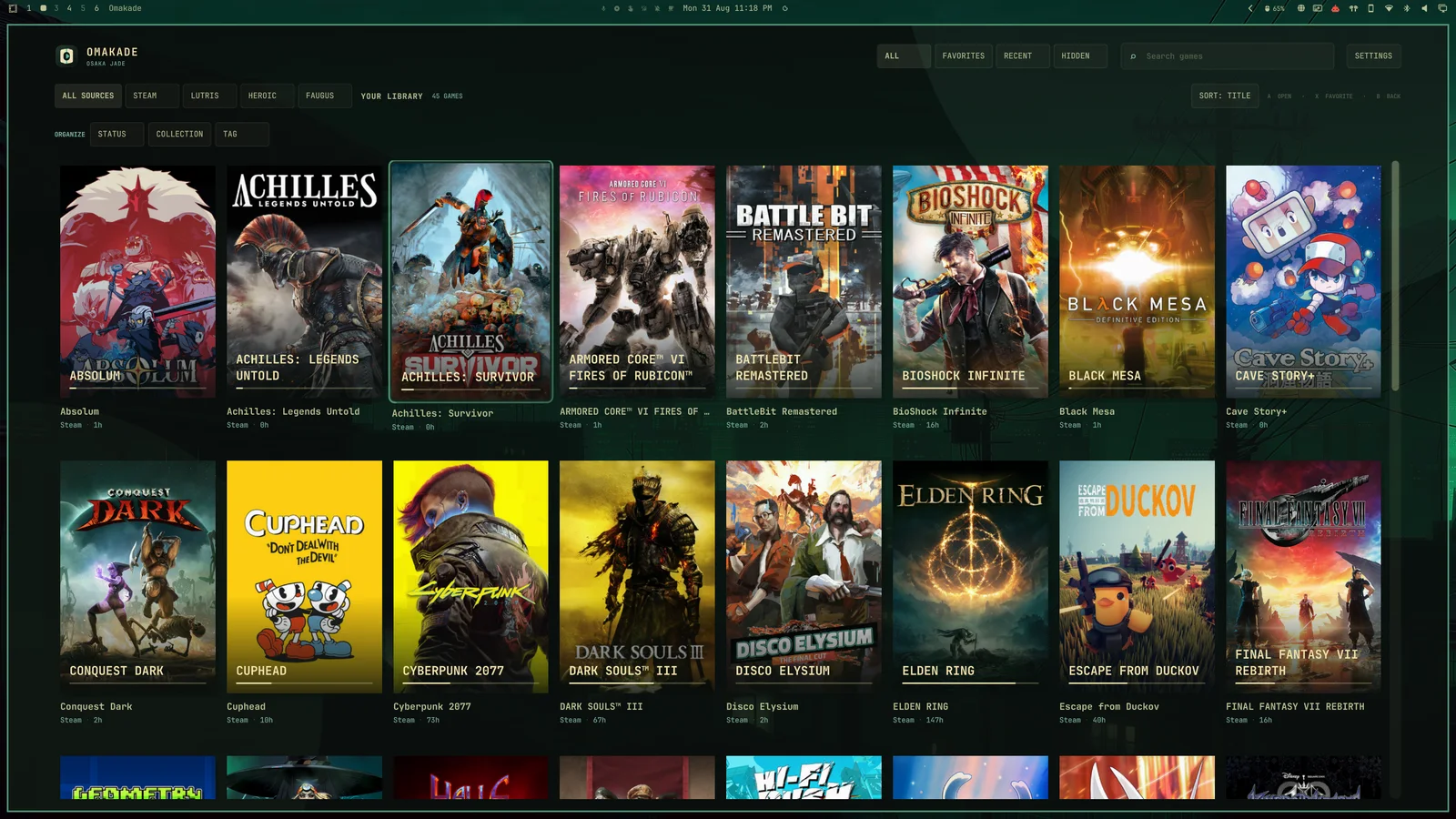
Watch the 18-second demo
Omakade is a Linux game library built for Omarchy. It brings
installed Steam, Lutris, Heroic, Faugus, RetroArch, Battle.net, Epic, GOG, and Amazon games
into one quiet, cover-focused home that follows the active Omarchy theme.
Project homepage ·
Roadmap · Support
Omakade is an independent community project. It is not an official Omarchy
application.
Features
The 1.8.0 candidate includes:
- Native and Flatpak Steam, Lutris, Heroic, Faugus, RetroArch, PCSX2,
Ryujinx, Cemu, shadPS4, and Dolphin discovery, plus direct GOG installation
discovery, including Steam non-Steam shortcuts and games sideloaded into
Heroic, plus Battle.net games from Wine, Proton, and Bottles prefixes
- Console cards for cartridge and disc systems, with a per-system choice
between cards and library tiles, per-game pinning, and ROM folder scanning
for EmuDeck-style layouts
- Optional local session recording from supported emulator process arguments
- Optional Home, persistent Up Next, and local discovery suggestions
- Genre, decade, and platform filters with saved-filter persistence
- One-click details and delegated launching through the owning platform
- Omarchy palette, font, transparency, and live theme updates
- Search, favorites, hidden games, sorting, and source filters that combine,
including one chip for every emulator
- Runtime source controls with scan status and detected locations
- Optional close-after-launch behavior
- Collections, tags, completion states, and smart organization filters
- Local Steam achievements plus optional Web API enrichment
- Optional RetroAchievements progress for supported RetroArch systems
- Optional Steam owned-library sync with installed and ready-to-install views
- Optional IGDB ratings, popularity sorting, and game-length estimates, plus
release dates, original platform, genres, credits, and a background
paragraph on game details
- SteamGridDB portrait covers with per-game identification and artwork choices
- Adjustable cover size and per-console grouping preferences
- Local, downloaded, and user-selected cover, hero, and logo artwork
- Manual games, preferred installations, extra GOG folders, bulk organization,
saved filters, a random pick, and personal backup and restore
- Explicit linking for games installed through multiple sources
- ProtonDB and PCGamingWiki shortcuts with actionable launch errors
- Keyboard, mouse, and controller navigation
- Controller-first Couch Mode with Detail and Grid views, on-screen search,
and controller input that stays with your game after launch
- x86_64 and ARM64 packages, with checksums, SBOMs, and signed provenance
- Optional Sunshine app export so Moonlight can start Omakade or any installed
game, plus
--play and --quit commands

Omakade reads launcher data without modifying it. Core discovery, browsing,
artwork, and launching work offline. Run omakade --demo to explore the UI
with a deterministic fictional library.
Direct GOG discovery checks ~/GOG Games, ~/Games/GOG, ~/Games/Heroic,
and immediate game folders under ~/Games. In Settings, use Extra GOG Folders
to add library folders by path or through the desktop folder picker. Saved folders
are scanned alongside the standard locations. OMAKADE_GOG_LIBRARY_PATHS remains
an additive, colon-separated list of extra roots. Missing folders keep their
cached games while available folders refresh. Removing a saved folder does not
delete its game files or personal library choices. Native Linux builds
launch directly; Windows game builds run on Linux through umu-run with an
isolated per-game prefix. Omakade itself does not run on Windows.
GOG games installed through Heroic continue to launch through Heroic.
ARM64 packages pass automated build and lifecycle checks; testing on an Omarchy
ARM64 device is still open in issue #13.
On Apple Silicon with Asahi Linux, Omakade installs and discovers Steam games,
but the fex-steam wrapper that provides /usr/bin/steam can fail to start
games from any steam:// request, including Steam's own client. That is a
wrapper limitation, not something Omakade can work around; see issue #13 for
the details and workarounds reported so far.
Install on Omarchy or Arch
Install or upgrade from the Omarchy Package Repository
On Omarchy, install Omakade from OPR with:
sudo pacman -S omarchy/omakade
After that, Omakade updates with normal Omarchy system updates.
Install or upgrade from the terminal
These commands are for x86_64. For ARM64, replace x86_64 with aarch64
in the package filename and download URL.
These commands download Omakade and its checksum into the current directory,
verify the package, and install it. If Omakade is already installed, pacman -U
upgrades it in place without removing your settings or library data:
curl -fLO https://github.com/btsouth/omakade/releases/download/v1.8.0/omakade-1.8.0-1-x86_64.pkg.tar.zst
curl -fLO https://github.com/btsouth/omakade/releases/download/v1.8.0/SHA256SUMS
sha256sum -c SHA256SUMS --ignore-missing
sudo pacman -U ./omakade-1.8.0-1-x86_64.pkg.tar.zst
Install or upgrade from a browser download
- Open the latest release.
- Under Assets, download
omakade-1.8.0-1-x86_64.pkg.tar.zst (or
omakade-1.8.0-1-aarch64.pkg.tar.zst for ARM64) and SHA256SUMS into the same folder.
- Open a terminal in that folder and run the commands below. On ARM64,
replace
x86_64 with aarch64 in the package filename:
sha256sum -c SHA256SUMS --ignore-missing
sudo pacman -U ./omakade-1.8.0-1-x86_64.pkg.tar.zst
Launch Omakade from the application launcher or run omakade in a terminal.
Include uninstalled Steam games
Omakade shows installed games by default. To include the rest of your Steam
library, open Settings, save your Steam ID and Web API key, then select Sync
owned Steam library. Your Steam Game Details must be public. After syncing,
use All Games or Ready to Install in the library. Installation is handed
off to Steam.
Omakade keeps its local library and settings when the package is upgraded or
removed. The owning launchers remain responsible for games, accounts, updates,
cloud saves, DRM, and compatibility tools.
Emulated games can sit behind one console card per system (Super Nintendo,
Nintendo 64, Sega Dreamcast, and so on) instead of filling the library. Each
system's layout is chosen in Settings → Library, and any game can be
pinned to the main library from its details page. ROM folders without a
RetroArch playlist are scanned when they follow the EmuDeck layout
(~/Emulation/roms, /data/Emulation/Games) or are added under ROM Folders in
Settings → Sources. Switch dumps show the icon and name stored inside the NSP or XCI when
Ryujinx's prod.keys is present; Wii U .wua archives and PS4 dumps carry
their own icons. GameCube and Wii discs come from Dolphin's game folders or a
GameCube/Wii folder, launch through Dolphin's batch mode, and take their
covers from Dolphin's cache or GameTDB.
RetroArch games come from its configured playlists. Omakade uses local
RetroArch thumbnails and runtime logs, then launches each game with its assigned
core. Entries without a core association remain visible and explain how to fix
launching after you press Play.
Battle.net games come from the Battle.net Agent database inside a Wine, Proton,
or Bottles prefix. Omakade launches each title through that prefix's Battle.net
client. Wine, umu-launcher, or Bottles must be installed to play.
Games added to Steam as non-Steam shortcuts appear in Omakade's Steam source.
Omakade launches those shortcuts through Steam, leaving their compatibility
and controller settings with Steam. Configure and test the shortcut in Steam
first, then refresh Omakade and launch its Steam entry. If linked to another
installation, choose the Steam installation or make it the default.
A game launched through Heroic, Lutris, Faugus, or the Manual source uses that
source's launch path. Omakade does not automatically route it through Steam or
choose Steam's Proton. Steam Input and overlay behavior still depend on Steam,
the shortcut, and the game; importing a shortcut does not verify controller
compatibility. Omakade does not create or modify Steam shortcuts.
See Steam's shortcut instructions.
Add a native game manually
Open Settings and choose Add a Game. Select a native executable or .desktop
file, review its title, executable, working folder, and arguments, then save.
Each argument has its own field, including arguments containing spaces. Omakade
stores a copy of the launch details; importing does not modify the desktop entry.
Use Edit Manual Game in details to repair paths or remove the library entry.
Removing it never deletes the game files. Manual games support the existing
artwork, favorites, tags, collections, linking, launch history, and streaming flows.
Couch Mode supports typing and editing launch details with the on-screen keyboard;
file browsing is available in Desktop Mode. Desktop entries requiring a terminal
are not supported. Windows games should be configured in Steam, Heroic, Lutris,
or Faugus so those applications retain responsibility for their runners.
Organize several games at once
Open Organize above the desktop library or in Couch Mode's Browse panel.
Select individual games or choose Select Results for the current filtered
library. Actions explicitly favorite, unfavorite, hide, unhide, set completion
status, add/remove tags, or add/remove collection membership for the selection.
Adding to a new collection creates it. Other tags and collections are retained.
Each batch is atomic: a failed write changes none of the selected games.
Selection follows game identities through sorting and rescans; if a selected
entry disappears, clear and reselect before applying changes. A successful
batch clears selection. Clear or Done cancels the selection without edits.
Bulk choices persist locally and also apply to linked installations. Tag limits
are 20 per game and 32 characters per tag.
Save a library view
Open Saved Filters above the desktop library or from Couch Mode's Browse
panel. Enter a name and choose Save Current to keep the current search,
source, availability, favorites/recent/hidden mode, status, collection, tag, and
sort order. Select a saved view to rename or delete it, or choose Apply.
Deletion requires confirmation and leaves your current filters unchanged.
Saved filters are dynamic queries, so newly matching games appear automatically.
If a referenced collection or tag is missing, Omakade keeps that criterion and
shows a message instead of silently broadening the results. Recreating it makes
the view usable again. Saved views stay local and persist across restarts.
Back up your library
Open Settings → Backup & Restore. Save As writes a local
.omakade-backup archive of your favorites, hidden choices, organization, links,
preferred installations, manual entries, custom artwork, saved filters, launch
activity, and core preferences. Game files, launcher databases, account
credentials, and downloaded caches are excluded.
Use Open to preview a backup, or enter a path and choose Preview Path.
The preview lists counts, preferences, missing paths, and saved-filter name
conflicts. Merge imports matching choices and keeps unrelated personal data.
Replace clears personal library choices before importing, while keeping game
files and cached source records. Both require confirmation. Close and reopen
Omakade to apply the queued restore; it saves a recovery copy before changing
anything. An interrupted restore can finish or be undone before the library opens.
Account-service identifiers and Sunshine publishing choices stay local. Missing
manual paths remain repairable, and disconnected game identities stay stored.
Restoring never launches imported games. In Couch Mode, confirm the path field
to use the on-screen keyboard, and use the arrows to scroll the preview.
Pick something to play
Choose Pick a Game above the desktop library or in Couch Mode's Browse
panel. Omakade picks an available game from the current results and opens its
details for review. Pick Another chooses again; Play launches only when
you choose it. Search, source, favorites, status, collection, and tag filters
still apply. Linked installations count as one game, and the last choice is
avoided when another eligible game exists.
Customize game artwork
Open a game's details and choose Artwork to change its cover, wide hero
background, or logo. Select a PNG, JPEG, or WebP file up to 32 MB. Transparent
logos are supported. Each image is copied into Omakade's data folder, so moving
the original or clearing downloaded caches does not remove your choice.
Use Reset beside an artwork type to restore its provider fallback without
changing the other images. Desktop Mode includes a file picker; Couch Mode can
enter an image path with the on-screen keyboard.
Stream with Sunshine and Moonlight
Omarchy installs Sunshine from its menu and ships Moonlight. Once Sunshine is
running, open Omakade's Settings and enable Omakade in Moonlight to add
Omakade to Sunshine's app list next to Steam Big Picture, or One app per
installed game to add every installed game with its cover. Sunshine reads the
list when it starts, so press Restart Sunshine after a change. Omakade
leaves the other Sunshine apps alone and keeps a one-time backup next to
apps.json.
Starting Omakade from Moonlight opens it in Couch Mode on the streamed display.
Starting a game from Moonlight launches it through its own launcher, the same
as pressing Play. The same entry points work from a terminal or a keybinding:
omakade --play Steam::620          # Source:runner:id, the runner is often empty
omakade --play Heroic:legendary:Sugar
omakade --couch                     # Start directly in Couch Mode
omakade --quit
Build
Requirements:
- CMake 3.24 or newer
- Ninja
- C++20 compiler
- Qt 6.8 or newer with Concurrent, Core, Gui, Network, Qml, Quick, Quick
Controls, SQL, and Test, plus the SVG and image format plugins
- SDL 3
- libsecret
- libzip
cmake --preset dev
cmake --build --preset dev
ctest --preset dev
./build/dev/omakade
Use Ctrl+F to search, arrow keys to navigate, Enter to open details, Escape
to return, and F11 to enter or leave Couch Mode. The controller Start button
does the same. Couch Mode offers detail and grid library views and remembers
the preferred launch mode. Its cursor hides during controller or keyboard use,
returns on mouse movement, and remains visible in Desktop Mode. Ctrl+M
toggles reduced motion and Ctrl+D opens settings and source diagnostics.
Track play sessions
Every emulator keeps its own playtime in its own format, and some keep none at
all. Omakade ships an optional recorder. Turn on Record Playtime in Settings,
then enable its service:
systemctl --user enable --now omakade-sessiond
The recorder watches the process table and attributes sessions by the game path
on an emulator's command line. Profiles include RetroArch, Dolphin, PCSX2, Cemu,
Ryujinx, shadPS4, and yuzu-family forks like Eden. Attribution requires a
recognizable game path in those arguments. Internal game changes and wrapper
handoffs need adapter-specific validation; profile coverage is not runtime acceptance. Emulators that
count their own time retain their imported totals. Omakade takes the larger of
the imported total and its baseline plus recorded time. Recovery preserves committed time and
excludes unobserved downtime. Late imports are treated conservatively as including
already recorded sessions; gaps in tracking can delay visible increases. Existing
history is not rewritten automatically.
New installations require opting in. Existing saved choices are preserved, and
older configuration files without this setting retain their previous enabled
default. Settings reports whether the recorder is running separately from whether
recording is enabled. The recorder continues after Omakade closes; paused emulator
time counts. Switching recording off preserves history and displays imported time.
Game details separates imported emulator time from Omakade's recorded total.
Loading a game from inside an emulator's own file picker is not counted yet,
because the command line carries no path then. See the
recording coverage notes for validation limits.
Local data
- Library:
~/.local/share/omakade/library.sqlite3
- Settings:
~/.config/omakade/config.toml
- Downloaded artwork:
~/.cache/omakade/
- Selected custom artwork:
~/.local/share/omakade/artwork/
- Play sessions:
play_sessions and play_baselines tables in the library
Core library discovery, local achievements, artwork, search, organization,
controller navigation, and launching require no Steam API key or network
connection. An optional Steam connection can sync public owned games and hand
uninstalled titles to Steam for installation. Optional Steam and IGDB
credentials are stored by Secret Service, and cached metadata stays available
offline.
See PRIVACY.md for retained data and external requests,
CHANGELOG.md for release notes, and the current
compatibility report for tested platform layouts.

 Omakade 是一款为 Omarchy 打造的本地优先游戏库应用,把你已安装的 Steam、Lutris、Heroic、Faugus、RetroArch、Battle.net、Epic、GOG 和 Amazon 游戏汇集到一个以封面为主、跟随 Omarchy 主题的主屏幕里。