Flame Graphs visualize profiled code
Main Website: http://www.brendangregg.com/flamegraphs.html
Example (click to zoom):
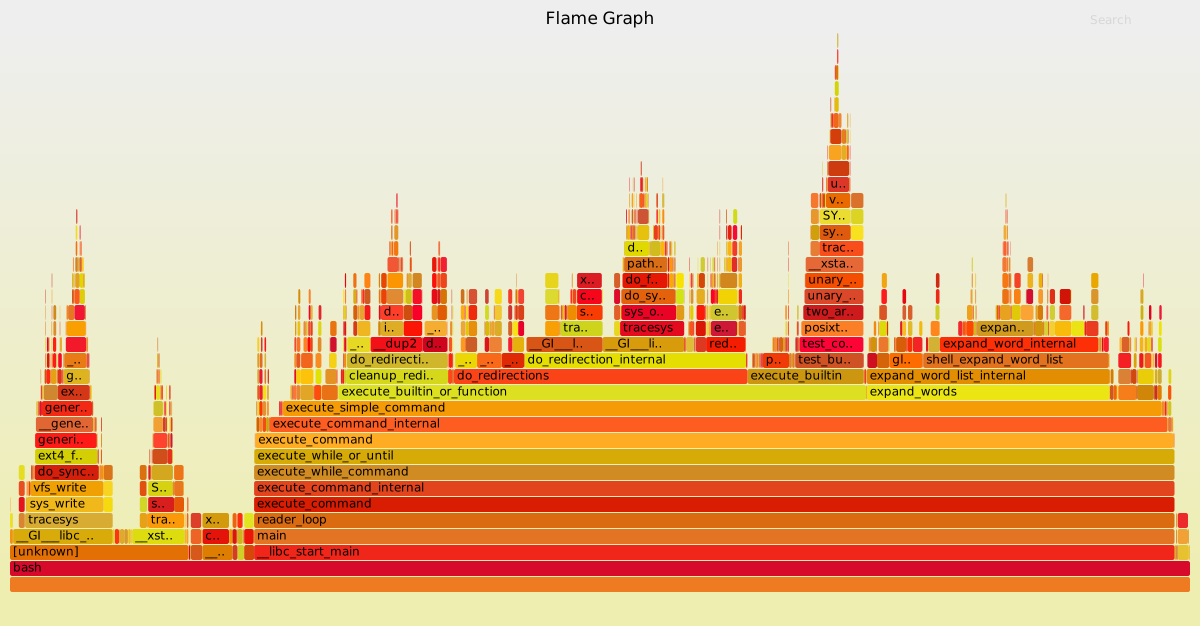
Click a box to zoom the Flame Graph to this stack frame only.
To search and highlight all stack frames matching a regular expression, click the search button in the upper right corner or press Ctrl-F.
By default, search is case sensitive, but this can be toggled by pressing Ctrl-I or by clicking the ic button in the upper right corner.
Other sites:
Flame graphs can be created in three steps:
- Capture stacks
- Fold stacks
- flamegraph.pl
1. Capture stacks
Stack samples can be captured using Linux perf_events, FreeBSD pmcstat (hwpmc), DTrace, SystemTap, and many other profilers. See the stackcollapse-* converters.
Linux perf_events
Using Linux perf_events (aka "perf") to capture 60 seconds of 99 Hertz stack samples, both user- and kernel-level stacks, all processes:
# perf record -F 99 -a -g -- sleep 60
# perf script > out.perf
Now only capturing PID 181:
# perf record -F 99 -p 181 -g -- sleep 60
# perf script > out.perf
DTrace
Using DTrace to capture 60 seconds of kernel stacks at 997 Hertz:
# dtrace -x stackframes=100 -n 'profile-997 /arg0/ { @[stack()] = count(); } tick-60s { exit(0); }' -o out.kern_stacks
Using DTrace to capture 60 seconds of user-level stacks for PID 12345 at 97 Hertz:
# dtrace -x ustackframes=100 -n 'profile-97 /pid == 12345 && arg1/ { @[ustack()] = count(); } tick-60s { exit(0); }' -o out.user_stacks
60 seconds of user-level stacks, including time spent in-kernel, for PID 12345 at 97 Hertz:
# dtrace -x ustackframes=100 -n 'profile-97 /pid == 12345/ { @[ustack()] = count(); } tick-60s { exit(0); }' -o out.user_stacks
Switch ustack() for jstack() if the application has a ustack helper to include translated frames (eg, node.js frames; see: http://dtrace.org/blogs/dap/2012/01/05/where-does-your-node-program-spend-its-time/). The rate for user-level stack collection is deliberately slower than kernel, which is especially important when using jstack() as it performs additional work to translate frames.
2. Fold stacks
Use the stackcollapse programs to fold stack samples into single lines. The programs provided are:
stackcollapse.pl: for DTrace stacksstackcollapse-perf.pl: for Linux perf_events "perf script" outputstackcollapse-pmc.pl: for FreeBSD pmcstat -G stacksstackcollapse-stap.pl: for SystemTap stacksstackcollapse-instruments.pl: for XCode Instrumentsstackcollapse-vtune.pl: for Intel VTune profilesstackcollapse-ljp.awk: for Lightweight Java Profilerstackcollapse-jstack.pl: for Java jstack(1) outputstackcollapse-gdb.pl: for gdb(1) stacksstackcollapse-go.pl: for Golang pprof stacksstackcollapse-vsprof.pl: for Microsoft Visual Studio profilesstackcollapse-wcp.pl: for wallClockProfiler output
Usage example:
For perf_events:
$ ./stackcollapse-perf.pl out.perf > out.folded

For DTrace:
$ ./stackcollapse.pl out.kern_stacks > out.kern_folded
The output looks like this:
unix`_sys_sysenter_post_swapgs 1401
unix`_sys_sysenter_post_swapgs;genunix`close 5
unix`_sys_sysenter_post_swapgs;genunix`close;genunix`closeandsetf 85
unix`_sys_sysenter_post_swapgs;genunix`close;genunix`closeandsetf;c2audit`audit_closef 26
unix`_sys_sysenter_post_swapgs;genunix`close;genunix`closeandsetf;c2audit`audit_setf 5
unix`_sys_sysenter_post_swapgs;genunix`close;genunix`closeandsetf;genunix`audit_getstate 6
unix`_sys_sysenter_post_swapgs;genunix`close;genunix`closeandsetf;genunix`audit_unfalloc 2
unix`_sys_sysenter_post_swapgs;genunix`close;genunix`closeandsetf;genunix`closef 48
[...]
3. flamegraph.pl
Use flamegraph.pl to render a SVG.
$ ./flamegraph.pl out.kern_folded > kernel.svg
An advantage of having the folded input file (and why this is separate to flamegraph.pl) is that you can use grep for functions of interest. Eg:
$ grep cpuid out.kern_folded | ./flamegraph.pl > cpuid.svg
Provided Examples
Linux perf_events
An example output from Linux "perf script" is included, gzip'd, as example-perf-stacks.txt.gz. The resulting flame graph is example-perf.svg:
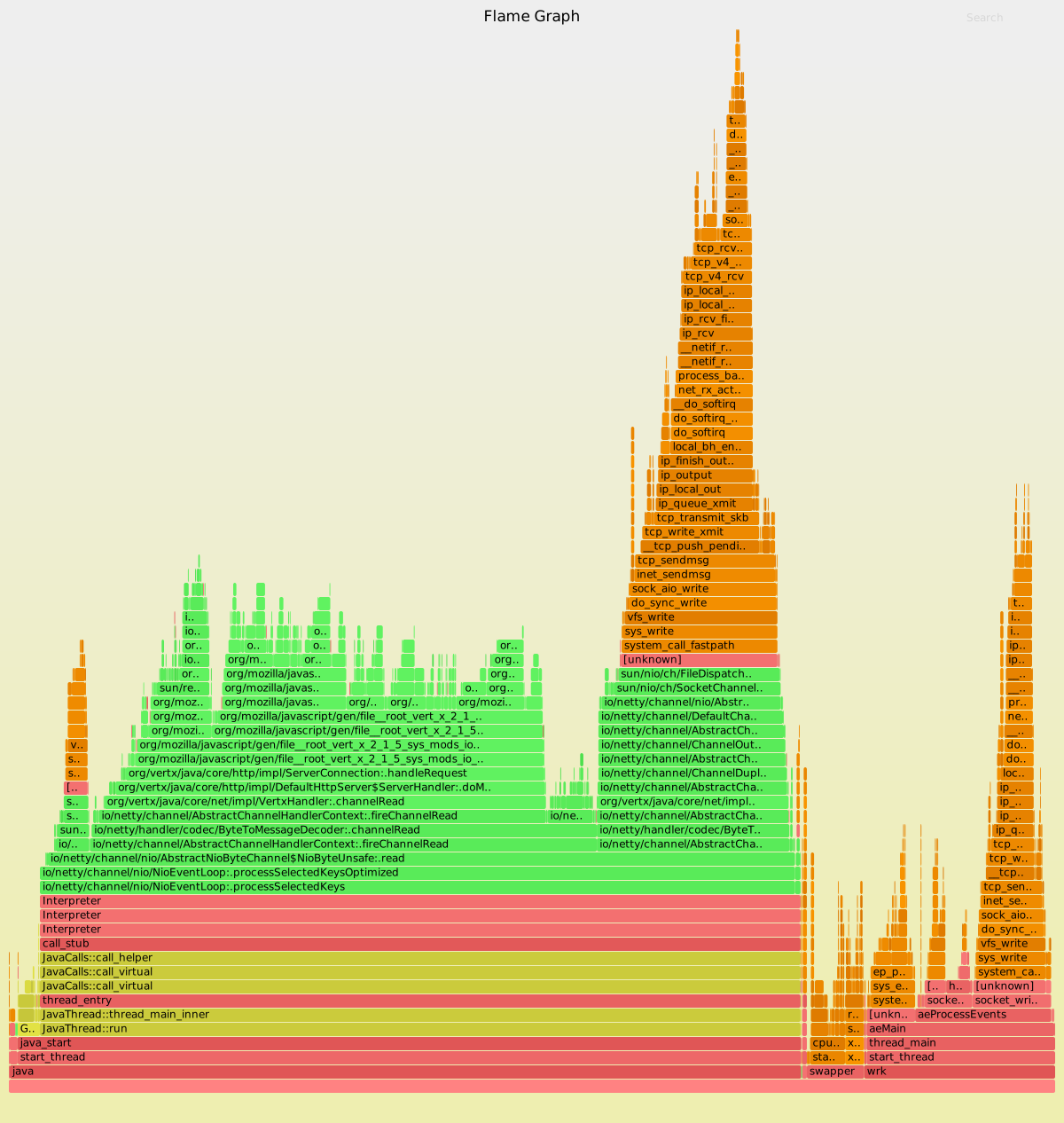
You can create this using:
$ gunzip -c example-perf-stacks.txt.gz | ./stackcollapse-perf.pl --all | ./flamegraph.pl --color=java --hash > example-perf.svg
This shows my typical workflow: I'll gzip profiles on the target, then copy them to my laptop for analysis. Since I have hundreds of profiles, I leave them gzip'd!
Since this profile included Java, I used the flamegraph.pl --color=java palette. I've also used stackcollapse-perf.pl --all, which includes all annotations that help flamegraph.pl use separate colors for kernel and user level code. The resulting flame graph uses: green == Java, yellow == C++, red == user-mode native, orange == kernel.
This profile was from an analysis of vert.x performance. The benchmark client, wrk, is also visible in the flame graph.
DTrace
An example output from DTrace is also included, example-dtrace-stacks.txt, and the resulting flame graph, example-dtrace.svg:
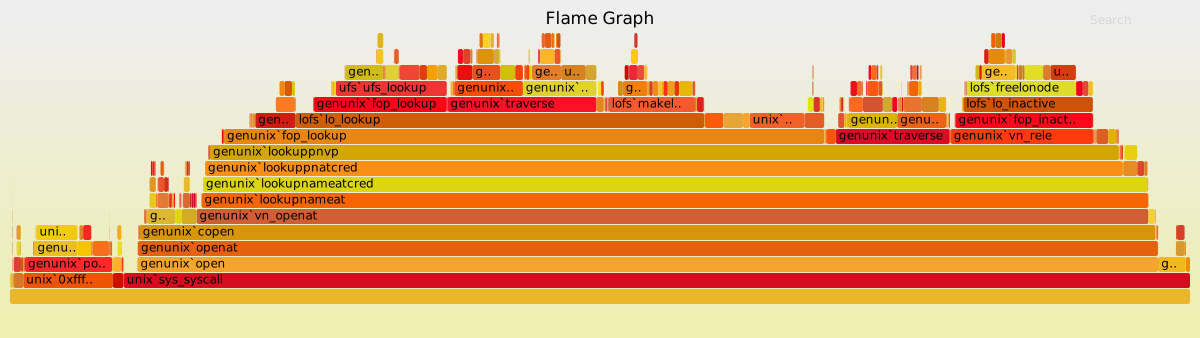
You can generate this using:
$ ./stackcollapse.pl example-stacks.txt | ./flamegraph.pl > example.svg
This was from a particular performance investigation: the Flame Graph identified that CPU time was spent in the lofs module, and quantified that time.
Options
See the USAGE message (--help) for options:
USAGE: ./flamegraph.pl [options] infile > outfile.svg
--title TEXT     # change title text
--subtitle TEXT  # second level title (optional)
--width NUM      # width of image (default 1200)
--height NUM     # height of each frame (default 16)
--minwidth NUM   # omit smaller functions. In pixels or use "%" for
                 # percentage of time (default 0.1 pixels)
--fonttype FONT  # font type (default "Verdana")
--fontsize NUM   # font size (default 12)
--countname TEXT # count type label (default "samples")
--nametype TEXT  # name type label (default "Function:")
--colors PALETTE # set color palette. choices are: hot (default), mem,
                 # io, wakeup, chain, java, js, perl, red, green, blue,
                 # aqua, yellow, purple, orange
--bgcolors COLOR # set background colors. gradient choices are yellow
                 # (default), blue, green, grey; flat colors use "#rrggbb"
--hash           # colors are keyed by function name hash
--cp             # use consistent palette (palette.map)
--reverse        # generate stack-reversed flame graph
--inverted       # icicle graph
--flamechart     # produce a flame chart (sort by time, do not merge stacks)
--negate         # switch differential hues (blue<->red)
--notes TEXT     # add notes comment in SVG (for debugging)
--help           # this message

eg,
./flamegraph.pl --title="Flame Graph: malloc()" trace.txt > graph.svg
As suggested in the example, flame graphs can process traces of any event,
such as malloc()s, provided stack traces are gathered.
Consistent Palette
If you use the --cp option, it will use the $colors selection and randomly
generate the palette like normal. Any future flamegraphs created using the --cp
option will use the same palette map. Any new symbols from future flamegraphs
will have their colors randomly generated using the $colors selection.
If you don't like the palette, just delete the palette.map file.
This allows your to change your colorscheme between flamegraphs to make the
differences REALLY stand out.
Example:
Say we have 2 captures, one with a problem, and one when it was working
(whatever "it" is):
cat working.folded | ./flamegraph.pl --cp > working.svg
# this generates a palette.map, as per the normal random generated look.

cat broken.folded | ./flamegraph.pl --cp --colors mem > broken.svg
# this svg will use the same palette.map for the same events, but a very
# different colorscheme for any new events.
Take a look at the demo directory for an example:
palette-example-working.svg
palette-example-broken.svg

 Brendan Gregg 的 FlameGraph:一套 Perl 脚本,把抓取到的调用栈转换成可交互的 SVG 火焰图,用来直观查看被采样的代码。