An immediate mode UI library for Rust that runs on the GPU. Written from scratch on top of wgpu, winit and taffy.
glacex (artemtsitronov/glacex)
Searching Database…
The project's README from github.com/artemtsitronov/glacex. As one markdown file: README.md.
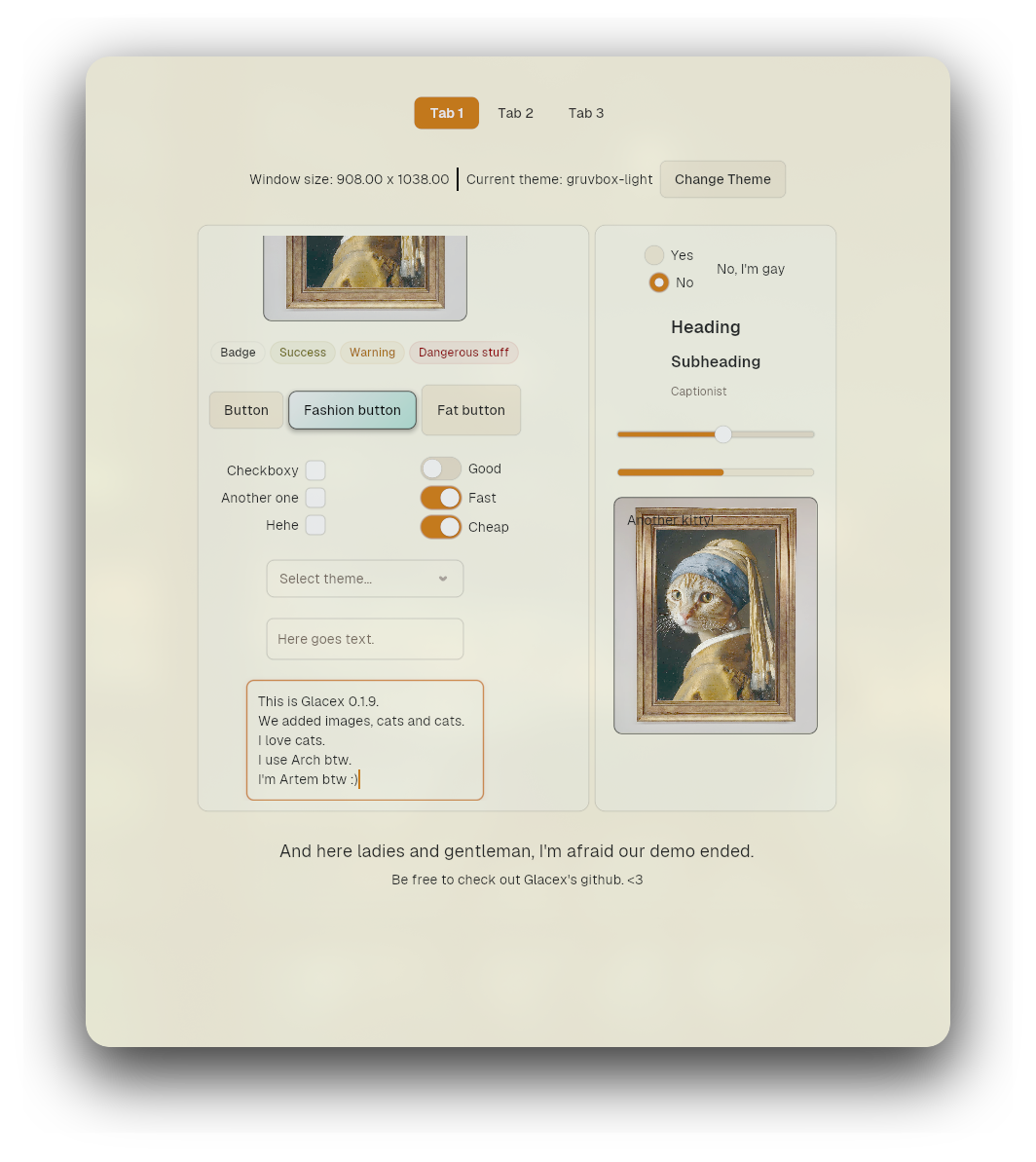


An immediate mode UI library for Rust that runs on the GPU. Written from scratch on top of wgpu, winit and taffy.
Developed by Artem Tsitronov(author) and Glacex contributors(thank you so much <3). If you have any questions or problems, just email me at [email protected]
Status: 0.2.0 is a lot more stable than before and I'm not planning any big API changes. If something big does change, I'll let you know first.
If you want a more experimental version of glacex, there's the programmersd21 fork at https://github.com/programmersd21/glacex
Just so you know, I'm not responsible for that fork. That includes big changes, redesigns and AI generated stuff in it.
glacex is an immediate mode UI library for Rust. It doesn't wrap a native toolkit or a browser engine. It draws everything itself.
Here's what it uses under the hood:
winit handles the window and the event loop on every platform.wgpu draws every shape on the GPU as an instanced SDF quad.glyphon shapes the text and puts the glyphs into atlases, and each widget gets its own clipping.taffy does the flexbox math for row! and column!.image decodes images.kurbo handles paths.There's no retained widget tree and no markup. You just write your UI in normal Rust every frame, and glacex measures it, lays it out, handles input, animates it and renders it.
MeasurablePath::Free, drawn by a second mesh pipeline. So you're not stuck with rects and ellipses. More in Custom Shapes / Paths.glyphon, and every widget clips its own text.Color is #[repr(C)] and Pod/Zeroable, so it goes straight into vertex buffers. You can make colors from hex, RGB or HSV, and blend, lerp, lighten or darken them.Button, Checkbox, RadioButton, Switch, Slider, ProgressBar, TextInput, TextArea, ScrollView, Card, Container, Badge, Divider, Label, SelectBox, Tabs, Accordion.row![] and column![] macros that use taffy, with alignment and spacing.arboard and a blinking cursor..state(ui), .take_state(ui) and .put_state(ui, state) from the StatefulWidget trait. Most of them also have simple helpers like checkbox.is_checked(ui) or slider.value(ui). Check out Widgets for more. Underneath all that are Ui::widget_state, take_widget_state and put_widget_state, which you can use for state that doesn't belong to one widget.animate_towards), plus a few easing curves and spring presets. There are named half life constants (Motion::INSTANT, SNAPPY, FLUID and GENTLE) so every widget animates with the same kind of feel.ScrollView and TextArea both use them.accesskit). See Accessibility.wgpu supports, so Vulkan, Metal, DirectX 12 or OpenGL ESxvfb to get a window surfacecargo add glacex
Or put it in your Cargo.toml
[dependencies]
glacex = "0.2.3"
[dependencies]
glacex = { git = "https://github.com/artemtsitronov/glacex.git", branch = "main" }
# Debian / Ubuntu
sudo apt install libx11-dev libxcursor-dev libxrandr-dev libxi-dev libxkbcommon-dev libwayland-dev

# Fedora
sudo dnf install libX11-devel libXcursor-devel libXrandr-devel libXi-devel libxkbcommon-devel wayland-devel

# Arch Linux
sudo pacman -S libx11 libxcursor libxrandr libxi libxkbcommon wayland
Here's a tiny counter app
use glacex::{App, Button, Color, Label, Ui, Widget, column};

struct Counter {
    count: u32,
}

impl Widget for Counter {
    type Output = ();

    fn ui(&mut self, ui: &mut Ui) {
        ui.set_bgcolor(Color::rgb(18, 18, 22));

        let mut label = Label::new(format!("Count: {}", self.count));
        let mut button = Button::new("Increment").id("increment-button");

        column![&mut label, &mut button]
            .spacing(12.0)
            .arrange_at([40.0, 40.0], ui);

        if button.clicked() {
            self.count += 1;
        }
    }
}

fn main() {
    App::new(Counter { count: 0 }).run();
}
App::new(root).run() opens the window, sets up the GPU and starts the event loop.
App<W: Widget> owns the winit window and the event loop
App::new(root_widget)
    .update(|root| {
        // Runs once per frame before rendering. Good place for
        // app-level state changes based on the previous frame's input.
    })
    .run();
Everything in the UI implements Widget
pub trait Widget {
    type Output;
    fn ui(&mut self, ui: &mut Ui) -> Self::Output;
}
If a widget can go inside row! or column! it also implements Measurable
pub trait Measurable: Widget {
    fn measure(&mut self, ui: &mut Ui) -> [f32; 2];
    fn arrange(&mut self, position: [f32; 2], size: [f32; 2], ui: &mut Ui) -> Self::Output;
}
measure tells the layout how big the widget wants to be. arrange gets the final rect, then handles input and hit testing and does the drawing.
Ui is the context every widget gets each frame. Here's roughly what's on it
mouse_position(), mouse_pressed(), mouse_right_pressed(), click_count(), key_pressed(), ctrl_held() and shift_held()set_cursor_icon(CursorIcon)show_tooltip(text) and show_tooltip_at(text, pos)widget_state::<T>(id), take_widget_state::<T>(id) and put_widget_state(id, state). These are what every widget's .state(ui), .take_state(ui) and .put_state(ui, state) userequest_focus(id), is_focused(id) and advance_focus(backward)push_clip(rect), pop_clip() and push_input_block(rect)draw_shape(...), draw_text(...), measure_text(...) and line_height()set_title(&str) and set_bgcolor(Color)Layout has its own page, go check out docs/layout.md.
let mut btn = Button::new("Deploy")
    .id("button")
    .tooltip("Triggers a deployment event")
    .primary();

if btn.clicked() {
    println!("clicked");
}
There's also .primary(), .outline(), .ghost() and .danger().
let mut check = Checkbox::new().id("checkbox").default_checked(true);
let is_checked = check.is_checked(ui);
row![
    &mut RadioButton::new("theme_group").id("dark"),
    &mut Label::new("Dark Theme"),
];

let selected = ui.selected_option("theme_group").unwrap_or("dark");
let mut sw = Switch::new().id("switch").default_enabled(true);
let enabled = sw.enabled(ui);
let mut slider = Slider::new(0.0, 100.0).id("slider").width(240.0).default_value(50.0);
let val = slider.value(ui);
let mut input = TextInput::new().id("username-input").width(260.0).placeholder("Enter a username");
let text = input.text(ui);
let mut notes = TextArea::new().id("notes").size([300.0, 120.0]);
use glacex::{SelectBox, SelectOption};

let options = vec![
    SelectOption::new("light", "Light"),
    SelectOption::new("dark", "Dark"),
    SelectOption::new("mocha", "Catppuccin Mocha"),
    SelectOption::new("tokyo", "Tokyo Night"),
];

let mut sel = SelectBox::new(options)
    .id("select-box")
    .placeholder("Choose a theme…")
    .width(220.0)
    .tooltip("Switch the active colour theme");

sel.arrange_at([40.0, 40.0], ui);

let selected = sel.selected(ui);
If you want to search through the options, add .searchable()
let mut sel = SelectBox::new(countries)
    .id("searchable")
    .placeholder("Select a country…")
    .width(260.0)
    .searchable();
The dropdown opens with a spring animation and closes when you press Escape or click somewhere else. You can move through it with the arrow keys and pick something with Enter.
use glacex::{Tabs, TabItem};

let mut tabs = Tabs::new(
    vec![
        TabItem::new("General").id("tab1"),
        TabItem::new("Account").id("tab2"),
        TabItem::new("Billing").id("tab3"),
    ],
).id("tabs");

let selected = tabs.selected(ui);
The pill behind the active tab slides over and resizes with a spring when you click a different tab. The selection updates right away. It's stored the same way as RadioButton groups, so ui.selected_option("tabs") works too.
let mut content = Label::new("Inside Card");
let mut card = Card::new(&mut content).padding([16.0, 16.0]);
ScrollView::new(&mut child_column)
    .id("scroll-view")
    .size([300.0, 150.0])
    .arrange_at([20.0, 20.0], ui);
Accordion::new(vec![AccordionItem::new("Title", &mut content)]) stacks sections you can open and close. Add .multiple() if more than one can be open at onceContainer::new(&mut child).size([w, h]) wraps a child in a box with a fixed sizeDivider::horizontal(width) and Divider::vertical(height) draw a separator line. Add .faint() if you want it lighterLabel::new(text) is just text. It has .secondary(), .muted() and .accent(), some size presets like .caption(), .heading() and .metric(), and .mono()Badge::new(text) is a little status pill with .secondary(), .outline(), .success(), .warning() and .error()ProgressBar::new(ratio) is a progress barEvery widget has its own *Style struct, and it controls everything the widget draws. That means fills, borders, shadows, padding, fonts, shapes, animation timings and the hover cursor. The easy way is to start from a theme preset and only change the fields you care about with ..
use glacex::{Border, Button, ButtonStyle, Color, CursorIcon, Fill, Path, ShadowStyle, Stateful};

let save_btn = Button::new("Save").id("btn").style(ButtonStyle {
    fill: Stateful::new(Color::hex_str("#4f46e5"))
        .hovered(Color::hex_str("#6366f1"))
        .pressed(Color::hex_str("#4338ca"))
        .into(),
    border: Border::new(1.0, Color::WHITE.with_alpha(0.2)).into(),
    path: Path::rect([8.0; 4]).into(),
    shadow: ShadowStyle::new(Color::hex_str("#4f46e5").with_alpha(0.4), 12.0, [0.0, 3.0]).into(),
    scale: Stateful::new(1.0).hovered(1.03).pressed(0.97),
    cursor: CursorIcon::Pointer,
    ..ButtonStyle::primary(ui.theme())
});
Stateful<T>If a property can change when you interact with the widget, it's a Stateful<T>. It has an idle value, and you can also give it hovered, pressed, focused, selected and selected_hovered values. Any state you don't set just uses the one below it. A plain value turns into a Stateful that looks the same in every state, so simple stuff stays simple
Button::new("Save").fill(Color::rgb(200, 40, 40))

Button::new("Save").fill(
    Stateful::new(Color::rgb(200, 40, 40)).hovered(Color::rgb(230, 60, 60))
)
Button, Card, Checkbox, RadioButton, Switch, Slider, TextInput, TextArea, SelectBox, Badge and ProgressBar also have .fill(..), .border(..) and .shadow(..) builders. You can pass them a plain value or a Stateful. Label has .fill(..), .text_color(..), .border(..) and .padding(..). And .color(..) and .thickness(..) on Divider take a Stateful too.
The states always stack in the same order. First idle, then hovered, then selected (or selected_hovered if it's hovered), then focused and then pressed. Every layer fades in with its own animation. What selected means depends on the widget. It's checked for Checkbox, on for Switch, the picked option for RadioButton, the active tab in Tabs and the picked item in SelectBox. pressed is also used while you drag a slider or a scrollbar thumb.
How things blend depends on the type. Numbers, colors, solid fills, shadows and text size and color all blend smoothly. Gradients, images, paths, font weight and font family just flip over halfway through. When a color blends from fully transparent it keeps the hue of the target, so it doesn't fade through black. You can put any type that implements Blend in a Stateful.
A few things that work the same in every style
Stateful<T>. Almost everything is. The exceptions are animation timings (*_motion and spring stiffness and damping), on and off flags like sharp or clip_content, enums, alignment, strings, syntax, scroll_speed and cursor_blink_period. Badge, Label, Divider and ProgressBar only have the hovered state. Sizes like padding and heights get measured with last frame's state, so the layout is one frame behind.path can be any Path, so Path::rect(radii), Path::ellipse(rot) or Path::from_fn(..). sharp turns off anti aliasing.text_style sets the font family, size, line height, weight and color. If you call .text_style(..) on the widget it still wins. If that one has no color, it uses the color from the style.*_motion field is a half life in seconds. You can use Motion::INSTANT, SNAPPY, FLUID, GENTLE or any f32 you want. 0.0 means no animation at all.cursor is the cursor you get on hover (glacex::CursorIcon).| Style Struct | Target Widget | Fields |
|---|---|---|
ButtonStyle |
Button |
fill†, border†, padding†, min_size†, text_style†, text_align, shadow†, sharp, path†, scale†, offset†, hover_motion, press_motion, cursor† |
BadgeStyle |
Badge |
fill†, border†, padding†, height†, min_width†, text_style†, text_align, shadow†, sharp, path†, hover_motion |
CardStyle |
Card |
fill†, border†, padding†, min_size†, shadow†, sharp, clip_content, path†, hover_motion, cursor† |
CheckboxStyle |
Checkbox |
fill†, check_color†, check_thickness†, check_scale†, border†, shadow†, sharp, path†, size†, pop_scale†, check_motion, hover_motion, pop_motion, cursor† |
RadioButtonStyle |
RadioButton |
fill†, border†, shadow†, sharp, dot_color†, dot_inset†, dot_path†, path†, size†, dot_motion, hover_motion, cursor† |
SwitchStyle |
Switch |
track_fill†, thumb_fill†, thumb_border†, thumb_padding†, thumb_size†, thumb_shadow†, thumb_path†, trail_color†, trail_stretch†, trail_max†, border†, shadow†, sharp, path†, size†, toggle_motion, hover_motion, cursor† |
SliderStyle |
Slider |
track_fill†, filled_fill†, thumb_fill†, thumb_border†, border†, track_height†, thumb_size†, vertical_padding†, shadow†, trail_color†, trail_stretch†, trail_max†, sharp, path†, filled_path†, thumb_path†, hover_motion, drag_motion, velocity_motion, cursor† |
ProgressBarStyle |
ProgressBar |
track_fill†, progress_fill†, border†, progress_border†, progress_inset†, min_progress_width†, size†, shadow†, sharp, path†, progress_path†, progress_motion, hover_motion |
TextInputStyle |
TextInput |
fill†, text_style†, placeholder_color†, border†, padding†, selection_color†, selection_radius†, cursor_color†, cursor_width†, cursor_blink_period, shadow†, sharp, path†, hover_motion, focus_motion, cursor† |
TextAreaStyle |
TextArea |
fill†, text_style†, syntax, border†, padding†, selection_color†, selection_radius†, current_line_fill†, cursor_color†, cursor_width†, cursor_blink_period, thumb_fill†, thumb_path†, scrollbar†, scroll_speed, shadow†, sharp, path†, hover_motion, focus_motion, cursor† |
ScrollViewStyle |
ScrollView |
fill†, border†, background_path†, track_fill†, thumb_fill†, scrollbar†, always_show_scrollbars, scroll_speed, clip_content, sharp, path†, track_path†, hover_motion, cursor† |
SelectBoxStyle |
SelectBox |
fill†, text_style†, placeholder_color†, border†, shadow†, height†, padding_x†, show_chevron, chevron_color†, chevron_size†, chevron_thickness†, chevron_open_angle†, chevron_space†, dropdown_fill†, dropdown_border†, dropdown_padding†, dropdown_max_height†, dropdown_screen_margin†, dropdown_shadow†, item_height†, item_inset_x†, item_padding_x†, item_fill†, item_text_style†, item_corner_radius†, show_check, check_color†, check_thickness†, searchable, search_height†, search_gap†, search_padding_x†, search_fill†, search_border†, search_corner_radius†, search_text_style†, search_placeholder, sharp, path†, hover_motion, focus_motion, chevron_motion, item_hover_motion, open_stiffness, open_damping, cursor† |
TabsStyle |
Tabs |
height†, tab_padding_x†, tab_min_width†, gap†, padding_x†, fill†, border†, shadow†, text_style†, tab_fill†, indicator_fill†, indicator, indicator_border†, indicator_shadow†, pill_inset_y†, sharp, path†, indicator_path†, tab_path†, hover_motion, indicator_motion, cursor† |
DividerStyle |
Divider |
fill†, thickness†, margin†, inset†, sharp, path†, hover_motion |
AccordionStyle |
Accordion |
header_height, header_padding_x, header_fill†, header_border†, header_path†, header_text_style†, chevron, content_padding, show_dividers, divider_color, sharp, hover_motion, focus_motion, open_stiffness, open_damping, cursor† |
LabelStyle |
Label |
padding†, align_x, align_y, fill†, text_color†, border†, sharp, path†, hover_motion |
Presets you can start from are ButtonStyle::{from_theme, primary, outline, ghost, danger}, BadgeStyle::{.., tinted(theme, color)}, CardStyle::{.., interactive}, CheckboxStyle::circle, RadioButtonStyle::outlined, SwitchStyle::square, SliderStyle::thick, ProgressBarStyle::colored(theme, color), TextInputStyle::filled, TextAreaStyle::code, ScrollViewStyle::panel, SelectBoxStyle::filled, TabsStyle::{segmented, underline}, AccordionStyle::filled, DividerStyle::{faint, strong, rounded} and LabelStyle::highlighted.
pub struct ShadowStyle {
    pub color: Color,
    pub blur_radius: f32,
    pub offset: [f32; 2],
    pub spread: f32,
}

let shadow = ShadowStyle::new(Color::BLACK.with_alpha(0.3), 12.0, [0.0, 4.0]).spread(2.0);
Color is #[repr(C)] and derives bytemuck::Pod and Zeroable, so you can put it right into a GPU vertex buffer
Color::rgb(255, 128, 0);
Color::rgba(255, 128, 0, 0.5);
Color::hex_str("#4f46e5");
Color::hex(0x4f46e5);
Color::hsv(240.0, 0.8, 0.9);

let tinted = Color::WHITE.with_alpha(0.3);
let blended = Color::RED.lerp(Color::BLUE, 0.5);
let dark = Color::RED.darken(0.2);
let light = Color::RED.lighten(0.2);
use glacex::{Color, Fill, Gradient, GradientKind, GradientStop};

let sunset = Fill::Gradient(Gradient {
    kind: GradientKind::Linear { angle: 90.0 },
    stops: vec![
        GradientStop { position: 0.0, color: Color::hex_str("#ff7e5f") },
        GradientStop { position: 1.0, color: Color::hex_str("#feb47b") },
    ],
});
You've got GradientKind::Linear { angle }, Radial { center, radius } and Conic { center }. Gradients get cached in a GPU atlas by their content, so using the same one every frame costs basically nothing.
Images work just like colors and gradients. Load it once and then use it anywhere you'd use a Fill
let logo = ui.load_image("assets/logo.png"); // PNG/JPEG/WebP via the `image` crate
let fill = Fill::Image(logo);
ImageHandle::width(), height() and size() give you the image size in pixels. That's handy if you want a widget to be the same size as the image.
All the built in widgets draw either a rounded rect or an ellipse (MeasurablePath::Rect or Ellipse). But the renderer can also draw any shape you want with MeasurablePath::Free(BezPath). The outline is a BezPath from kurbo
use glacex::{Color, Fill, MeasurablePath};
use kurbo::BezPath;

let mut star = BezPath::new();
star.move_to((160.0, 90.0));
star.line_to((188.0, 152.0));
// ...remaining points...
star.close_path();

ui.draw_shape(
    MeasurablePath::free(star),
    Fill::Solid(Color::hex_str("#f59e0b")),
    Border::new(4.0, Color::hex_str("#1e293b")),
    0.0,                          // blur_radius, not supported for Free paths, ignored
    false,                        // sharp
    0.0,                          // rotation, radians
);
Free paths get turned into triangles on the CPU and drawn with their own pipeline, not the SDF one that rects and ellipses use.
Solid and gradient fills both work. The gradient color is worked out per vertex, so Linear looks exactly right and Radial and Conic are pretty close. Curvier shapes have more vertices so they look even better. Fill::Image doesn't work on free paths yet and just shows up transparent, same as GradientKind::Mesh.
Borders are drawn as a separate outline around the shape with kurbo::stroke. So it looks like an SVG stroke, not like the inset border that rect and ellipse widgets have.
Free paths get batched and clipped like everything else. Right now though they always draw after all the rects and ellipses in the frame, mixing the draw order isn't done yet. Also only simple shapes work properly. If your path crosses itself or has holes, only the outer edge gets filled right.
There are 9 built in themes and you can switch between them at runtime with ui.set_theme(...)
ui.set_theme(Theme::LIGHT);
ui.set_theme(Theme::DARK);
ui.set_theme(Theme::CATPPUCCIN_MOCHA);
ui.set_theme(Theme::CATPPUCCIN_LATTE);
ui.set_theme(Theme::TOKYO_NIGHT);
ui.set_theme(Theme::GRUVBOX_DARK);
ui.set_theme(Theme::GRUVBOX_LIGHT);
ui.set_theme(Theme::NORD);
ui.set_theme(Theme::ROSE_PINE);
| Token | Default (LIGHT) |
Used for |
|---|---|---|
bg_canvas |
#ffffff |
Window background |
surface |
#ffffff |
Cards, panels |
surface_subtle |
#f4f4f5 |
Inset panels, control tracks |
surface_elevated |
#ffffff |
Modals, tooltips, dropdowns |
idle |
#f4f4f5 |
Resting button/control fill |
hovered |
#e4e4e7 |
Hover state |
pressed |
#d4d4d8 |
Pressed state |
active |
#18181b |
Primary action |
border_faint |
rgba(0,0,0,0.04) |
Hairline dividers |
border |
rgba(0,0,0,0.08) |
Standard borders |
border_strong |
rgba(0,0,0,0.16) |
Focused/emphasized borders |
text_primary |
#09090b |
Body text |
text_secondary |
#71717a |
Captions |
text_muted |
#a1a1aa |
Placeholders, metadata |
success |
#16a34a |
Success state |
warning |
#d97706 |
Warning state |
error |
#e11d48 |
Error state |
ui.set_title("My App");
ui.set_theme(Theme::LIGHT); // also updates the window background color
glacex can show its widgets to screen readers and other assistive tech through accesskit. That's AT-SPI on Linux, UIA on Windows and NSAccessibility on macOS. It's off by default, so you have to turn it on when you make the app
App::new(root_widget)
    .accessibility_enabled(true)
    .run();
Widgets like Button, Checkbox and TextInput get a role and a label on their own. I've tested it with Orca and Accerciser on Arch Linux.
# Dashboard-style demo (buttons, inputs, switches, sliders, logs)
cargo run --example demo

# Color/theme preview
cargo run --example example1

# Style playground
cargo run --example example2

# Simple demo application
cargo run --example reminder

# Demonstation of free shapes
cargo run --example free_shape

# Theming demonstration
cargo run --example themes
GradientKind::Mesh is there but doesn't do anything yet. It just draws transparent, so use Linear, Radial or Conic for now.MeasurablePath::Free doesn't support Fill::Image, blur, shadows, holes or paths that cross themselves. It also always draws after rects and ellipses in the same clip rect. More about it in Custom Shapes / Paths.wgpu, the SDF shaders and how a frame workstaffyBug reports and PRs are always welcome. Have a look at CONTRIBUTING.md for the code style and what to check before opening a PR.
MIT. See LICENSE.
Copyright (c) 2026 Artem Tsitronov and Glacex contibutors.
Thank you! Please star the project or grab it from crates.io. Either way it really makes my day! I'd love to hear any feedback from you, criticism too. Any help means a lot.
An immediate mode UI library for Rust that runs on the GPU. Written from scratch on top of wgpu, winit and taffy.