
Что это?
 LCU извлекает встроенный рантайм computer-use из Codex в десктоп-приложении ChatGPT и открывает его любому ИИ-харнессу для кодинга (Claude Code, Codex CLI, Pi), чтобы агент мог кликать, печатать, читать окна и делать снимки экрана на вашей машине без аутентификации в Codex.
LCU извлекает встроенный рантайм computer-use из Codex в десктоп-приложении ChatGPT и открывает его любому ИИ-харнессу для кодинга (Claude Code, Codex CLI, Pi), чтобы агент мог кликать, печатать, читать окна и делать снимки экрана на вашей машине без аутентификации в Codex.LCU заменяет десктоп-приложение ChatGPT или оно ему всё ещё нужно?Оно всё ещё нужно. Официальное десктоп-приложение ChatGPT должно оставаться установленным локально, потому что именно оно предоставляет рантайм computer-use и инструкции; LCU лишь занимается настройкой и подключает этот рантайм к вашему харнессу.
Оно всё ещё нужно. Официальное десктоп-приложение ChatGPT должно оставаться установленным локально, потому что именно оно предоставляет рантайм computer-use и инструкции; LCU лишь занимается настройкой и подключает этот рантайм к вашему харнессу.Как это установить и настроить?Скачайте подходящий архив и его файл .sha256 из последнего релиза на GitHub для своей платформы (macOS Apple Silicon, Linux ARM64 или Linux x86-64), проверьте контрольную сумму, распакуйте и зарегистрируйте LCU в своём харнессе; в Claude Code его вместо этого можно установить через менеджер плагинов двумя командами.
Скачайте подходящий архив и его файл .sha256 из последнего релиза на GitHub для своей платформы (macOS Apple Silicon, Linux ARM64 или Linux x86-64), проверьте контрольную сумму, распакуйте и зарегистрируйте LCU в своём харнессе; в Claude Code его вместо этого можно установить через менеджер плагинов двумя командами.Что должно быть установлено перед запуском?Нужны официальное десктоп-приложение ChatGPT, Python 3.12+ и уже настроенный поддерживаемый харнесс (Pi, Codex CLI или Claude Code); для Codex CLI его сначала нужно обновить, чтобы получить необходимую поддержку хуков.
Нужны официальное десктоп-приложение ChatGPT, Python 3.12+ и уже настроенный поддерживаемый харнесс (Pi, Codex CLI или Claude Code); для Codex CLI его сначала нужно обновить, чтобы получить необходимую поддержку хуков.Какие платформы реально работают сейчас?Только Linux ARM64/x86-64 с активным X11-десктопом и D-Bus, а также macOS на Apple Silicon с подписанным приложением ChatGPT. Windows 11 значится лишь «кандидатом», а Intel Mac, нативный Wayland и musl Linux не поддерживаются.
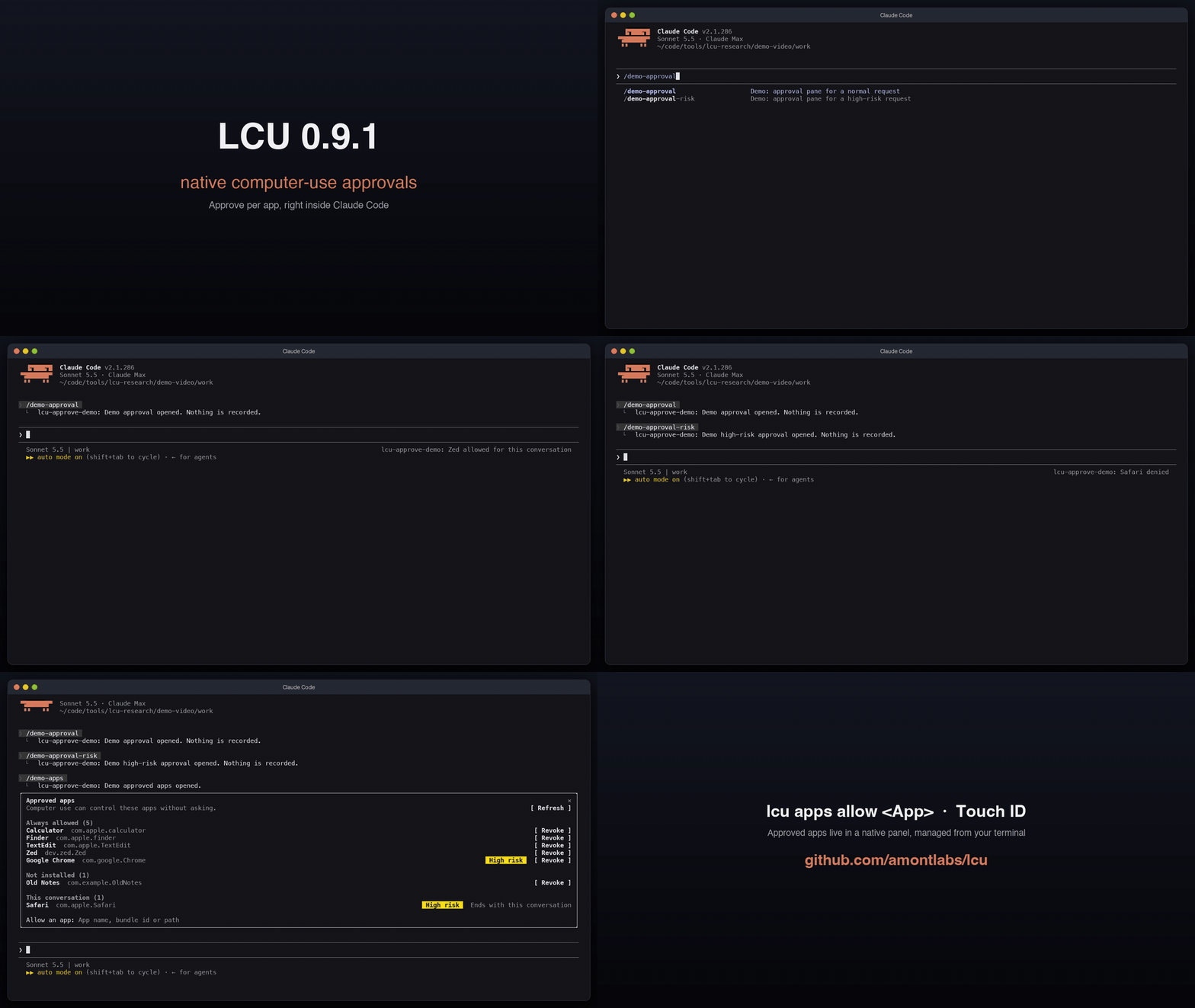
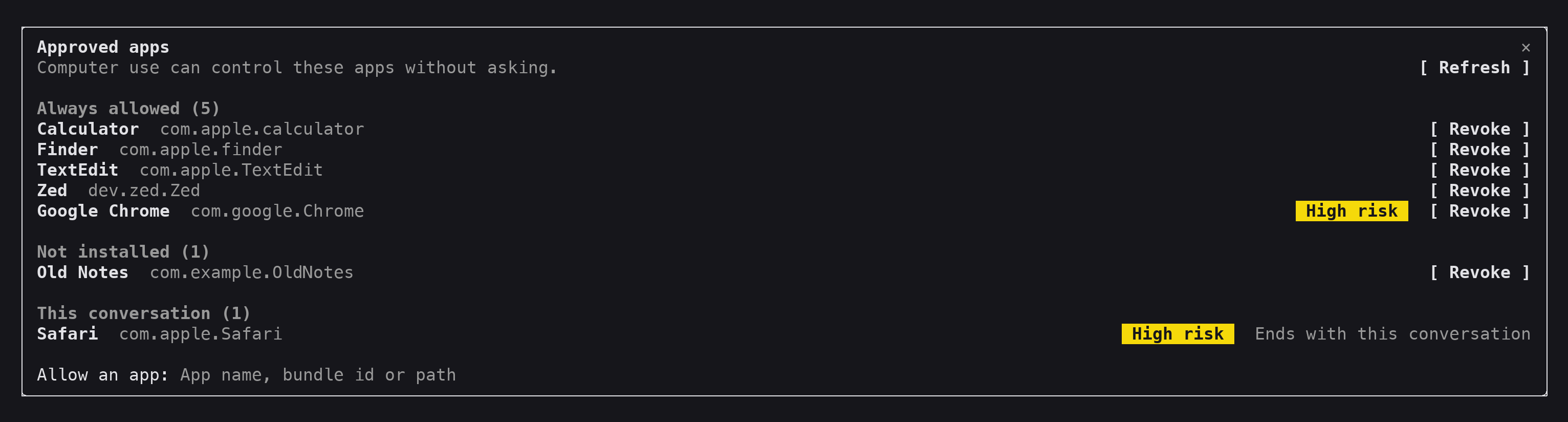
Только Linux ARM64/x86-64 с активным X11-десктопом и D-Bus, а также macOS на Apple Silicon с подписанным приложением ChatGPT. Windows 11 значится лишь «кандидатом», а Intel Mac, нативный Wayland и musl Linux не поддерживаются.Кто в итоге разрешает агенту трогать приложение на моей машине?Только вы. Подтверждения происходят в нативной панели, которую модель не может увидеть, нажать или подделать, а позже доступ можно отозвать для каждого приложения отдельно — на macOS при этом запрашивается Touch ID или ваш пароль.
Только вы. Подтверждения происходят в нативной панели, которую модель не может увидеть, нажать или подделать, а позже доступ можно отозвать для каждого приложения отдельно — на macOS при этом запрашивается Touch ID или ваш пароль.Может ли агент управлять ещё и вкладками моего Chrome?Да, если вы включите официальное расширение Chrome в своём профиле. Тогда LCU сможет читать вкладки и управлять ими, но каждый сайт по-прежнему требует отдельного подтверждения, а поддержка Chrome в Claude Code пока экспериментальная.
Да, если вы включите официальное расширение Chrome в своём профиле. Тогда LCU сможет читать вкладки и управлять ими, но каждый сайт по-прежнему требует отдельного подтверждения, а поддержка Chrome в Claude Code пока экспериментальная.Может ли агент записывать звук с моего компьютера?Только если передать --audio при настройке. Это просто включает собственный API записи звука и поток подтверждений нижележащего рантайма ChatGPT; сам LCU не добавляет никаких инструкций, связанных со звуком.
Только если передать --audio при настройке. Это просто включает собственный API записи звука и поток подтверждений нижележащего рантайма ChatGPT; сам LCU не добавляет никаких инструкций, связанных со звуком.Что конкретно можно делать с LCU внутри Pi?Pi получает две слэш-команды: /lcu stop запрашивает остановку Computer Use для выбранного приложения (только macOS), а /lcu pick выбирает приложение или цель в браузере и добавляет её в ваш черновик на проверку и отправку.
Pi получает две слэш-команды: /lcu stop запрашивает остановку Computer Use для выбранного приложения (только macOS), а /lcu pick выбирает приложение или цель в браузере и добавляет её в ваш черновик на проверку и отправку.Зачем создавать LCU, если можно напрямую использовать computer use от Codex?Рантайм computer-use от Codex обычно привязан к приложению Codex и его собственному входу; LCU отвязывает этот рантайм, чтобы другие харнессы вроде Claude Code или Pi могли использовать его без учётной записи Codex.
Рантайм computer-use от Codex обычно привязан к приложению Codex и его собственному входу; LCU отвязывает этот рантайм, чтобы другие харнессы вроде Claude Code или Pi могли использовать его без учётной записи Codex.What are similar projects?pstack-claude, newsjack, hive, openrig, midscene, agent-desktop, awesome-chatgpt-zh, jev-browser-use
pstack-claude, newsjack, hive, openrig, midscene, agent-desktop, awesome-chatgpt-zh, jev-browser-useWhich topics is it in?permission, pi-agent, desktop-automation, x11, codex-cli, computer-use, chrome-extension, harness, accessibility, browser-automation, chatgpt, desktop
permission, pi-agent, desktop-automation, x11, codex-cli, computer-use, chrome-extension, harness, accessibility, browser-automation, chatgpt, desktop