
The Ultimate vimrc
Over the last 10 years, I have used and tweaked Vim. This configuration is the ultimate vimrc (or at least my version of it).
There are two versions:
- The Basic: If you want something small just copy basic.vim into your ~/.vimrc and you will have a good basic setup
- The Awesome: Includes a ton of useful plugins, color schemes, and configurations
I would, of course, recommend using the awesome version.
How to install the Awesome version?
Install for your own user only
The awesome version includes a lot of great plugins, configurations and color schemes that make Vim a lot better. To install it simply do following from your terminal:
git clone --depth=1 https://github.com/amix/vimrc.git ~/.vim_runtime
sh ~/.vim_runtime/install_awesome_vimrc.sh
Install for multiple users
To install for multiple users, the repository needs to be cloned to a location accessible for all the intended users.
git clone --depth=1 https://github.com/amix/vimrc.git /opt/vim_runtime
sh /opt/vim_runtime/install_awesome_parameterized.sh /opt/vim_runtime user0 user1 user2
# to install for all users with home directories, note that root will not be included
sh /opt/vim_runtime/install_awesome_parameterized.sh /opt/vim_runtime --all
Naturally, /opt/vim_runtime can be any directory, as long as all the users specified have read access.
Fonts
I recommend using IBM Plex Mono font (it's an open-source and awesome font that can make your code look beautiful). The Awesome vimrc is already setup to try to use it.
Some other fonts that Awesome will try to use:
How to install the Basic version?
The basic version is just one file and no plugins. Just copy basic.vim and paste it into your vimrc.
The basic version is useful to install on remote servers where you don't need many plugins, and you don't do many edits.
git clone --depth=1 https://github.com/amix/vimrc.git ~/.vim_runtime
sh ~/.vim_runtime/install_basic_vimrc.sh
How to install on Windows?
Use gitforwindows to checkout the repository and run the installation instructions above. No special instructions needed ;-)
How to install on Linux
If you have vim aliased as vi instead of vim, make sure to either alias it: alias vi=vim. Otherwise, apt-get install vim
How to update to latest version?
Just do a git rebase!
cd ~/.vim_runtime
git reset --hard
git clean -d --force
git pull --rebase
python update_plugins.py  # use python3 if python is unavailable
Some screenshots
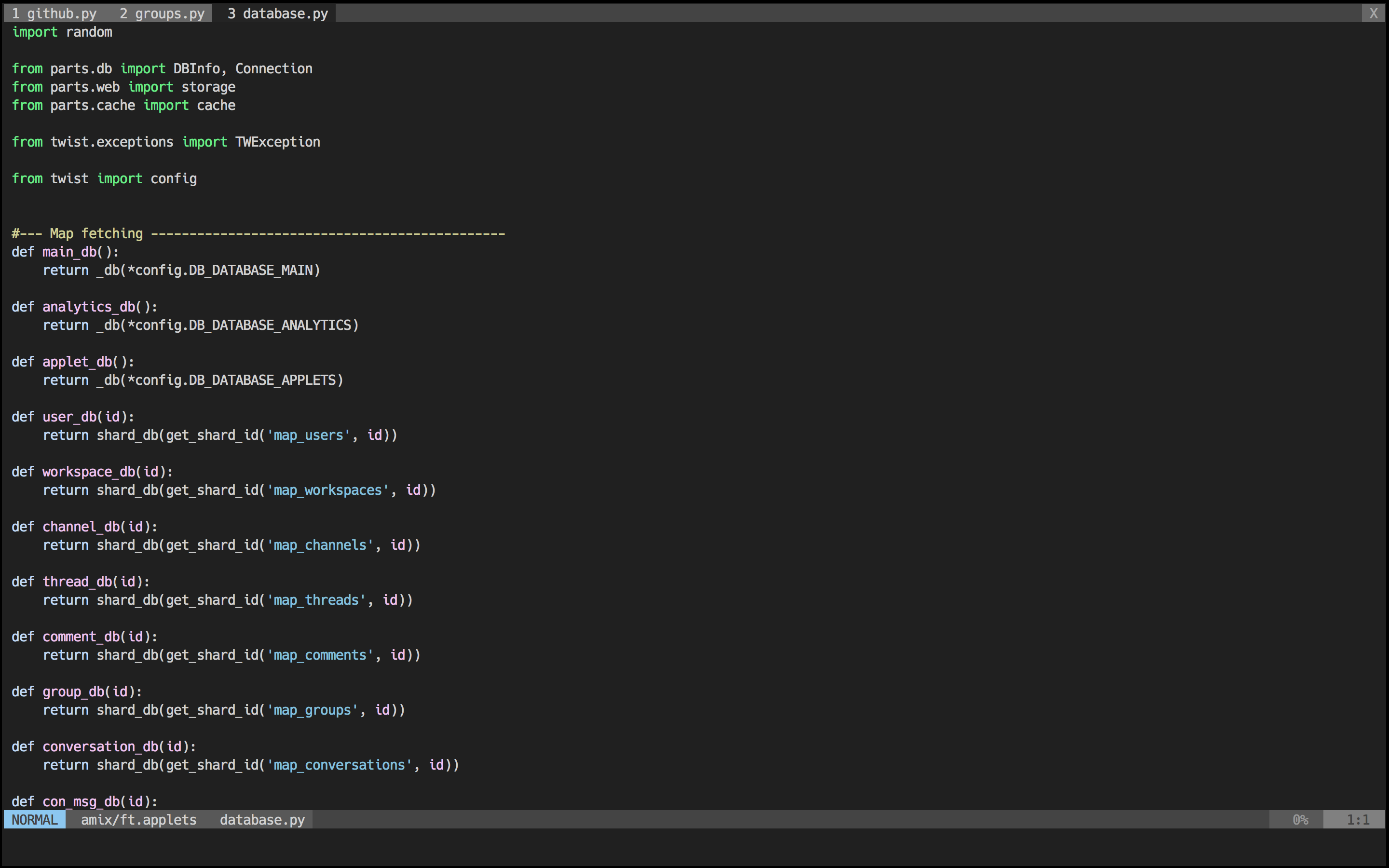
Colors when editing a Python file:
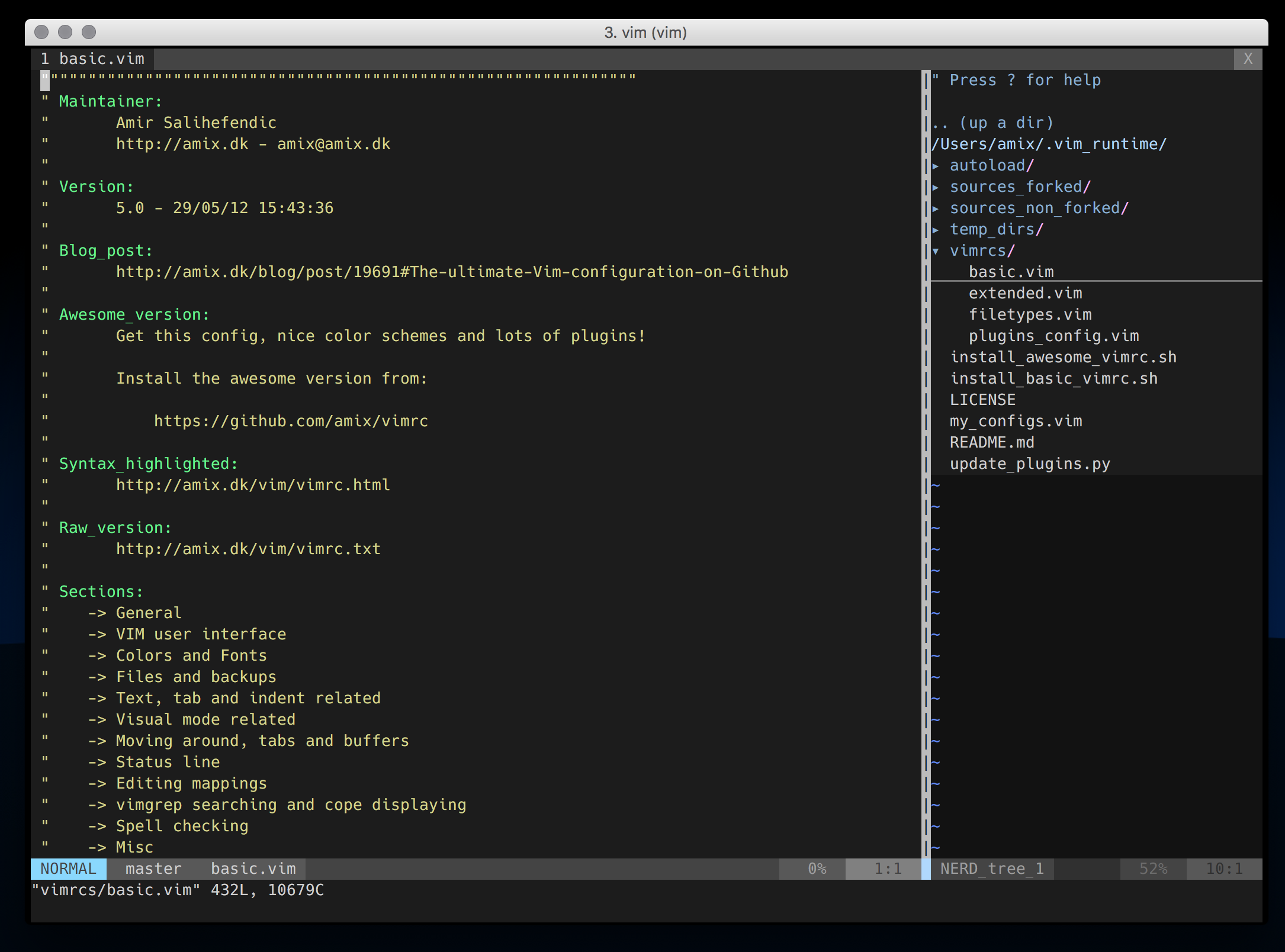
NERD Tree plugin in a terminal window:
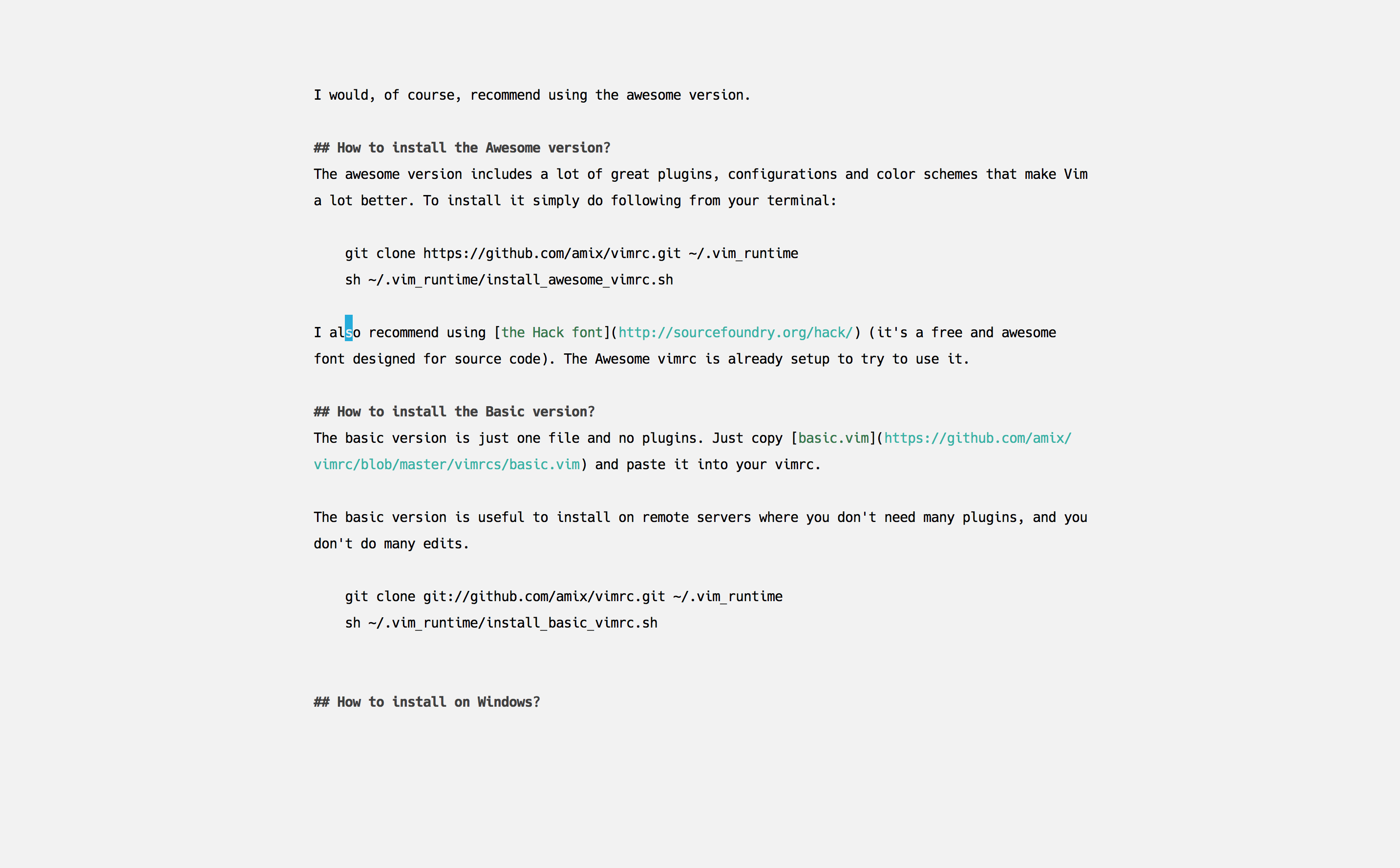
Distraction free mode using goyo.vim and vim-zenroom2:
Included Plugins
I recommend reading the docs of these plugins to understand them better. Each plugin provides a much better Vim experience!
- ack.vim: Vim plugin for
the_silver_searcher (ag) or ack -- a wicked fast grep
- bufexplorer.zip: Quickly and easily switch between buffers. This plugin can be opened with
<leader+o>
- ctrlp.vim: Fuzzy file, buffer, mru and tag finder. It's mapped to
<Ctrl+F>
- goyo.vim and vim-zenroom2:
- lightline.vim: A light and configurable statusline/tabline for Vim
- NERD Tree: A tree explorer plugin for vim
- open_file_under_cursor.vim: Open file under cursor when pressing
gf
- pathogen.vim: Manage your vim runtimepath
- snipmate.vim: snipmate.vim aims to be a concise vim script that implements some of TextMate's snippets features in Vim
- ale: Syntax and lint checking for vim (ALE requires NeoVim >= 0.2.0 or Vim 8 with +timers +job +channel)
- vim-commentary: Comment stuff out. Use
gcc to comment out a line (takes a count), gc to comment out the target of a motion. gcu uncomments a set of adjacent commented lines
- vim-expand-region: Allows you to visually select increasingly larger regions of text using the same key combination
- vim-fugitive: A Git wrapper so awesome, it should be illegal
- vim-indent-object: Defines a new text object representing lines of code at the same indent level. Useful for python/vim scripts
- vim-multiple-cursors: Sublime Text style multiple selections for Vim, CTRL+N is remapped to CTRL+S (due to YankRing)
- vim-yankstack: Maintains a history of previous yanks, changes and deletes
- vim-zenroom2 Remove all clutter and focus only on the essential. Similar to iA Writer or Write Room
- gist-vim Easily create gists from Vim using the
:Gist command
- vim-indent-guides Is a plugin for visually displaying indent levels in Vim
- editorconfig-vim EditorConfig helps maintain consistent coding styles for multiple developers working on the same project across various editors and IDEs
- copilot.vim Plugin for GitHub Copilot (AI autocompletion FTW 😅)
Included color schemes
Type :colorscheme <Tab> to try out color schemes on the fly,
or add the command to ~/.vim_runtime/my_configs.vim (see below),
for example colorscheme pyte.
Included modes
How to include your own stuff?
After you have installed the setup,
create an empty ~/.vim_runtime/my_configs.vim file for further customization.
This file's syntax matches vimrc syntax,
and add vimrc lines like set number as needed.
For instance, my my_configs.vim looks like this:
~/.vim_runtime > cat my_configs.vim
map <leader>ct :cd ~/Desktop/Todoist/todoist<cr>
map <leader>cw :cd ~/Desktop/Wedoist/wedoist<cr>
You can also install your plugins, for instance, via pathogen you can install vim-rails:
cd ~/.vim_runtime
git clone git://github.com/tpope/vim-rails.git my_plugins/vim-rails
You can also install plugins without any plugin manager (vim 8+ required):
- Create pack plugin directory:
mkdir -p ~/.vim_runtime/pack/plugins/start
- Clone the plugin that you want in that directory, for example:
git clone --depth=1 git://github.com/maxmellon/vim-jsx-pretty ~/.vim_runtime/pack/plugins/start/vim-jsx-pretty
Key Mappings
The leader is ,, so whenever you see <leader> it means ,.
Normal mode mappings
Fast saving of a buffer (<leader>w):
nmap <leader>w :w!<cr>
Map <Space> to / (search) and <Ctrl>+<Space> to ? (backwards search):
map <space> /
map <C-space> ?
Disable highlights when you press <leader><cr>:
map <silent> <leader><cr> :noh<cr>
Smart way to move between windows (<ctrl>j etc.):
map <C-j> <C-W>j
map <C-k> <C-W>k
map <C-h> <C-W>h
map <C-l> <C-W>l
Closing of the current buffer(s) (<leader>bd and (<leader>ba)):
" Close current buffer
map <leader>bd :Bclose<cr>

" Close all buffers
map <leader>ba :1,1000 bd!<cr>
```
Useful mappings for managing tabs:
```vim
map <leader>tn :tabnew<cr>
map <leader>to :tabonly<cr>
map <leader>tc :tabclose<cr>
map <leader>tm :tabmove

" Opens a new tab with the current buffer's path
" Super useful when editing files in the same directory
map <leader>te :tabedit <C-r>=escape(expand("%:p:h"), " ")<cr>/
```
Switch [CWD](http://vim.wikia.com/wiki/Set_working_directory_to_the_current_file) to the directory of the open buffer:
```vim
map <leader>cd :cd %:p:h<cr>:pwd<cr>
```
Open `ack.vim` for fast search:
```vim
map <leader>g :Ack
Quickly open a buffer for scripbble:
map <leader>q :e ~/buffer<cr>
Toggle paste mode on and off:
map <leader>pp :setlocal paste!<cr>
Visual mode mappings
Visual mode pressing * or # searches for the current selection:
vnoremap <silent> * :call VisualSelection('f')<CR>
vnoremap <silent> # :call VisualSelection('b')<CR>
When you press gv you Ack.vim after the selected text:
vnoremap <silent> gv :call VisualSelection('gv', '')<CR>
When you press <leader>r you can search and replace the selected text:
vnoremap <silent> <leader>r :call VisualSelection('replace')<CR>
Surround the visual selection in parenthesis/brackets/etc.:
vnoremap $1 <esc>`>a)<esc>`<i(<esc>
vnoremap $2 <esc>`>a]<esc>`<i[<esc>
vnoremap $3 <esc>`>a}<esc>`<i{<esc>
vnoremap $$ <esc>`>a"<esc>`<i"<esc>
vnoremap $q <esc>`>a'<esc>`<i'<esc>
vnoremap $e <esc>`>a`<esc>`<i`<esc>
Insert mode mappings
Quickly insert parenthesis/brackets/etc.:
inoremap $1 ()<esc>i
inoremap $2 []<esc>i
inoremap $3 {}<esc>i
inoremap $4 {<esc>o}<esc>O
inoremap $q ''<esc>i
inoremap $e ""<esc>i
inoremap $t <><esc>i
Insert the current date and time (useful for timestamps):
iab xdate <C-r>=strftime("%d/%m/%y %H:%M:%S")<cr>
Command line mappings
$q is super useful when browsing on the command line. It deletes everything until the last slash:
cno $q <C-\>eDeleteTillSlash()<cr>
Bash like keys for the command line:
cnoremap <C-A>		<Home>
cnoremap <C-E>		<End>
cnoremap <C-K>		<C-U>

cnoremap <C-P> <Up>
cnoremap <C-N> <Down>
Write the file as sudo (works only on Unix). Super useful when you open a file and you don't have permissions to save your changes. Vim tip:
:W
Open bufexplorer to see and manage the current buffers (<leader>o):
map <leader>o :BufExplorer<cr>
Open ctrlp.vim plugin to quickly find a file or a buffer (<leader>j or <ctrl>f):
" Quickly find and open a file in the CWD
let g:ctrlp_map = '<C-f>'

" Quickly find and open a recently opened file
map <leader>f :MRU<CR>

" Quickly find and open a buffer
map <leader>b :CtrlPBuffer<cr>
NERD Tree mappings:
map <leader>nn :NERDTreeToggle<cr>
map <leader>nb :NERDTreeFromBookmark
map <leader>nf :NERDTreeFind<cr>
goyo.vim and vim-zenroom2 lets you only focus on one thing at a time. It removes all the distractions and centers the content. It has a special look when editing Markdown, reStructuredText and textfiles. It only has one mapping. (<leader>z)
map <leader>z :Goyo<cr>
vim-multiple-cursors mappings to manage multiple cursors at once:
let g:multi_cursor_start_word_key      = '<C-s>'
let g:multi_cursor_select_all_word_key = '<A-s>'
let g:multi_cursor_start_key           = 'g<C-s>'
let g:multi_cursor_select_all_key      = 'g<A-s>'
let g:multi_cursor_next_key            = '<C-s>'
let g:multi_cursor_prev_key            = '<C-p>'
let g:multi_cursor_skip_key            = '<C-x>'
let g:multi_cursor_quit_key            = '<Esc>'
vim-yankstack mappings to manage the kill-ring (clipboard):
nmap <C-p> <Plug>yankstack_substitute_older_paste
nmap <C-n> <Plug>yankstack_substitute_newer_paste
ctrl-p mappings to easily find and open a file, buffer, etc.:
let g:ctrlp_map = '<C-f>'
map <leader>j :CtrlP<cr>
map <C-b> :CtrlPBuffer<cr>
vim-snipmate mappings to autocomplete via snippets:
ino <C-j> <C-r>=snipMate#TriggerSnippet()<cr>
snor <C-j> <esc>i<right><C-r>=snipMate#TriggerSnippet()<cr>
vim-surround mappings to easily surround a string with _() gettext annotation:
vmap Si S(i_<esc>f)
au FileType mako vmap Si S"i${ _(<esc>2f"a) }<esc>
ale to easily go to the next Ale syntax/lint error:
nmap <silent> <leader>a <Plug>(ale_next_wrap)
vim-indent-guides the default mapping to toggle the plugin is (<leader>ig)
You can also use the following commands inside Vim:
:IndentGuidesEnable
:IndentGuidesDisable
:IndentGuidesToggle
vim-fugitive to copy the link to the line of a Git repository to the clipboard:
nnoremap <leader>v :.GBrowse!<CR>
xnoremap <leader>v :'<'>GBrowse!<CR>
Spell checking
Pressing <leader>ss will toggle spell checking:
map <leader>ss :setlocal spell!<cr>
Shortcuts using <leader> instead of special characters:
map <leader>sn ]s
map <leader>sp [s
map <leader>sa zg
map <leader>s? z=
Running Code
To run code directly from vim, press F5. The currently open code will execute without you having to type anything.
Can be used to execute code written in C, C++, Java, Python, Go, Octave, Bash scripts and HTML. To edit how you want your code to be executed, make changes in the file ~/.vim_runtime/vimrcs/extended.vim
Cope
Query :help cope if you are unsure what cope is. It's super useful!
When you search with Ack.vim, display your results in cope by doing:
<leader>cc
To go to the next search result do:
<leader>n
To go to the previous search results do:
<leader>p
Cope mappings:
map <leader>cc :botright cope<cr>
map <leader>co ggVGy:tabnew<cr>:set syntax=qf<cr>pgg
map <leader>n :cn<cr>
map <leader>p :cp<cr>
How to uninstall
Just do following:
- Remove
~/.vim_runtime
- Remove any lines that reference
.vim_runtime in your ~/.vimrc
Looking for a remote-first job?
Maintaining this Vim configuration isn't my day job. Daily I am the founder/CEO of Doist. You could come and help us build the workplace of the future while living a balanced life (anywhere in the world 🌍🌎🌏).
PS: Using Vim isn't a requirement 😄

 The Ultimate vimrc 是一套打磨多年、拿来即用的 Vim 配置,作者已经持续调整了十多年。把它安装到你的用户主目录后,Vim 开箱就能好用很多。