CapCut Mate API
Project Introduction
CapCut Mate API is a completely open-source and free Jianying draft automation assistant built on FastAPI, supporting independent deployment. This project focuses on empowering large models with basic video editing capabilities, providing out-of-the-box video editing Skills, and has fully automated the entire Jianying core functionality workflow. It can directly connect with large models to achieve diverse intelligent video editing, enabling ordinary users to quickly create professional and advanced video works.
Flexible project usage: Can be independently deployed, or combined with Coze or n8n to build automated workflows, and can also connect with Jianying to achieve cloud rendering, directly generating final videos from drafts.
Project Resources
⭐ If you find this project helpful, please give us a Star! Your support is the greatest motivation for me to continuously maintain and improve the project 😊
Features
- 🎬 Draft Management: Create draft, get draft, save draft
- 🎥 Material Addition: Add videos, audios, images, stickers, subtitles, effects, masks, etc.
- 🔧 Advanced Functions: Keyframe control, text styles, animation effects, etc.
- 📤 Video Export: Cloud rendering to generate final video
- 🛡️ Data Validation: Using Pydantic for request data validation
- 📖 RESTful API: Compliant with standard API design specifications
- 📚 Auto Documentation: FastAPI automatically generates interactive API documentation
Tech Stack
- Python 3.11+
- FastAPI: High-performance web framework
- Pydantic: Data validation and model definition
- Passlib: Password encryption (if using user authentication)
- Uvicorn: ASGI server
- uv: Python package manager and project management tool
Quick Start
Prerequisites
- Python 3.11+
- uv: Python package manager and project management tool
Installation:
Windows
powershell -ExecutionPolicy ByPass -c "irm https://astral.sh/uv/install.ps1 | iex"
Linux/macOS
sh -c "$(curl -LsSf https://astral.sh/uv/install.sh)"
Installation Steps
- Clone the project
git clone [email protected]:Hommy-master/capcut-mate.git
cd capcut-mate
- Install dependencies
# Install dependencies
uv sync

# Additional execution for Windows
uv pip install -e .[windows]
- Start the server
uv run main.py
- Access API documentation
Docker Deployment
Quick Deployment (Recommended)
📺 Video Tutorial: CapCut Mate Private Deployment Complete Tutorial
git clone https://github.com/Hommy-master/capcut-mate.git
cd capcut-mate
docker-compose pull && docker-compose up -d
After deployment, access the API documentation at: http://localhost:30000/docs
One-Click Import Coze Plugin
Open Coze platform: https://coze.cn/home
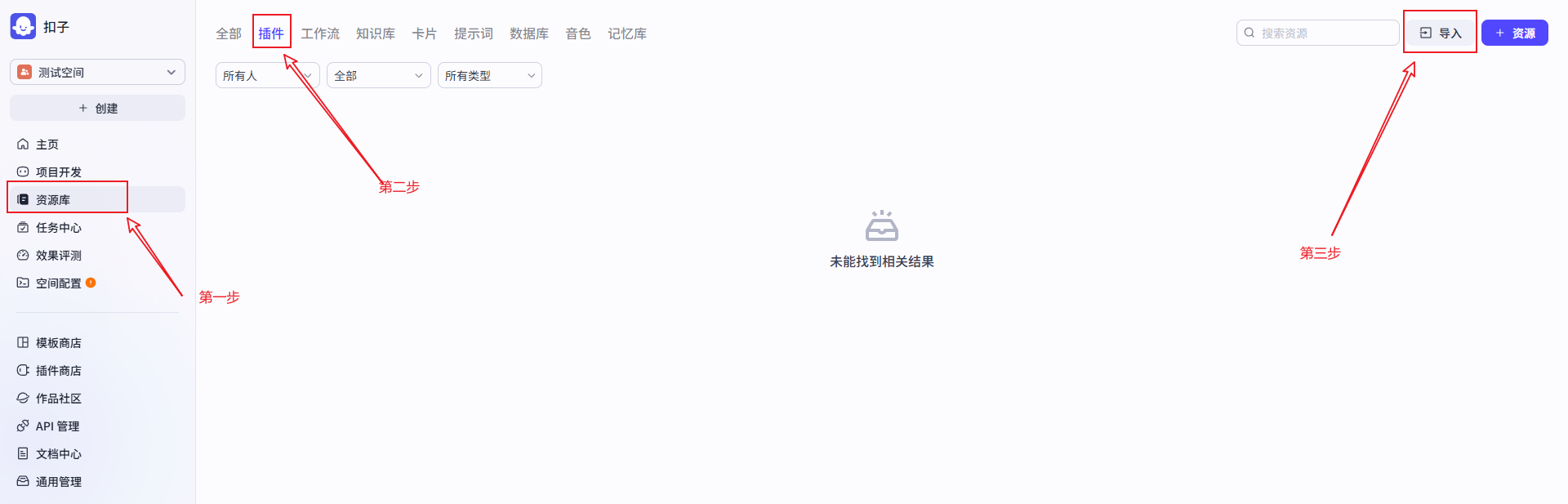
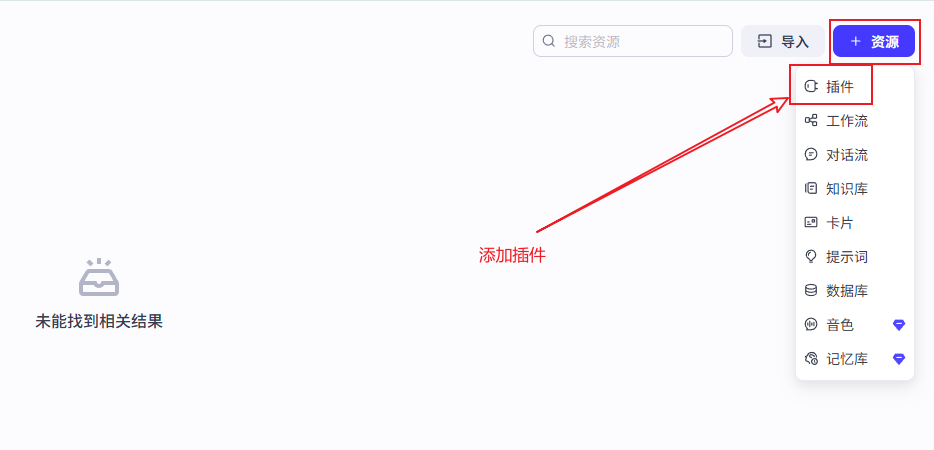
Add Plugin
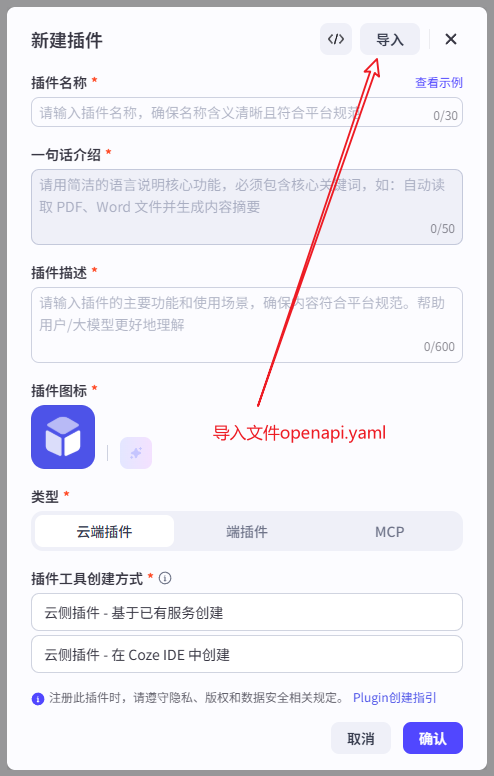
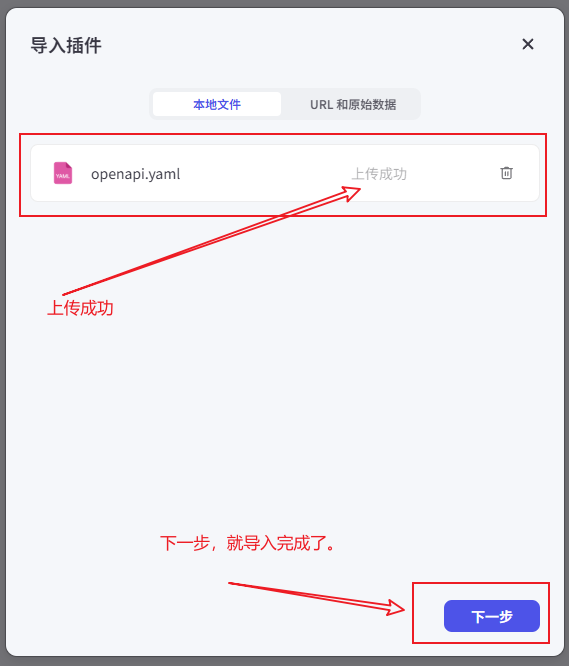
Import Plugin
Upload the openapi.yaml file in the current project directory
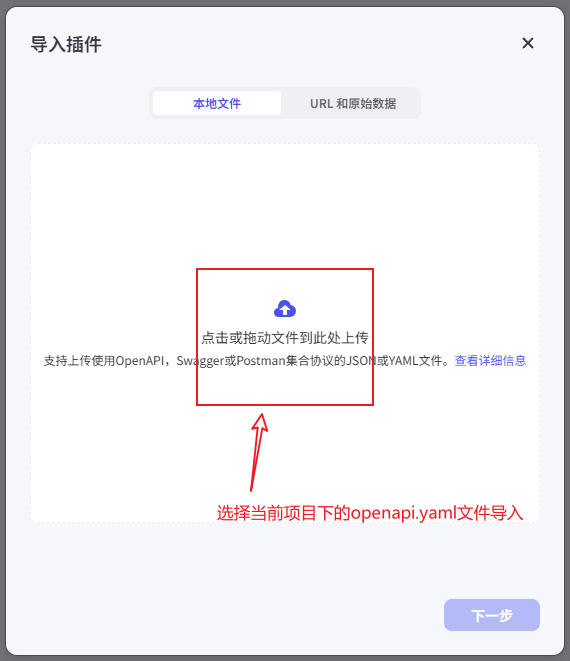
Complete file upload
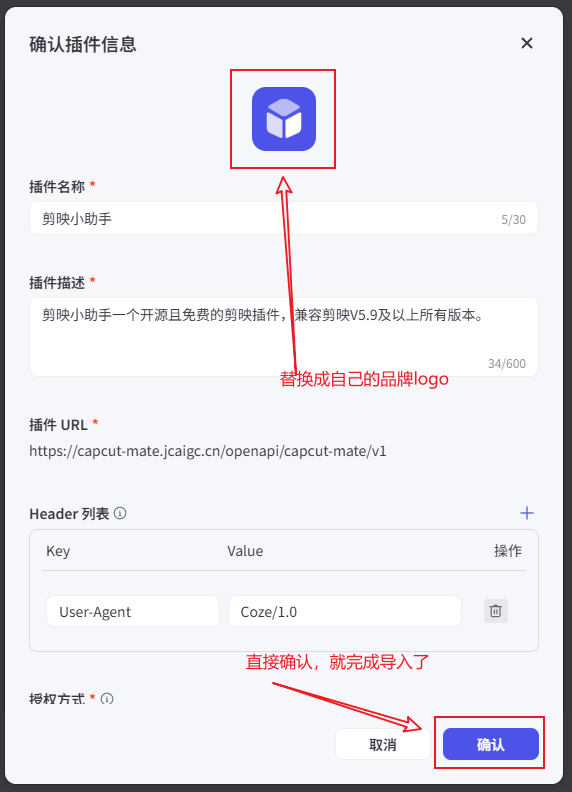
Complete logo replacement
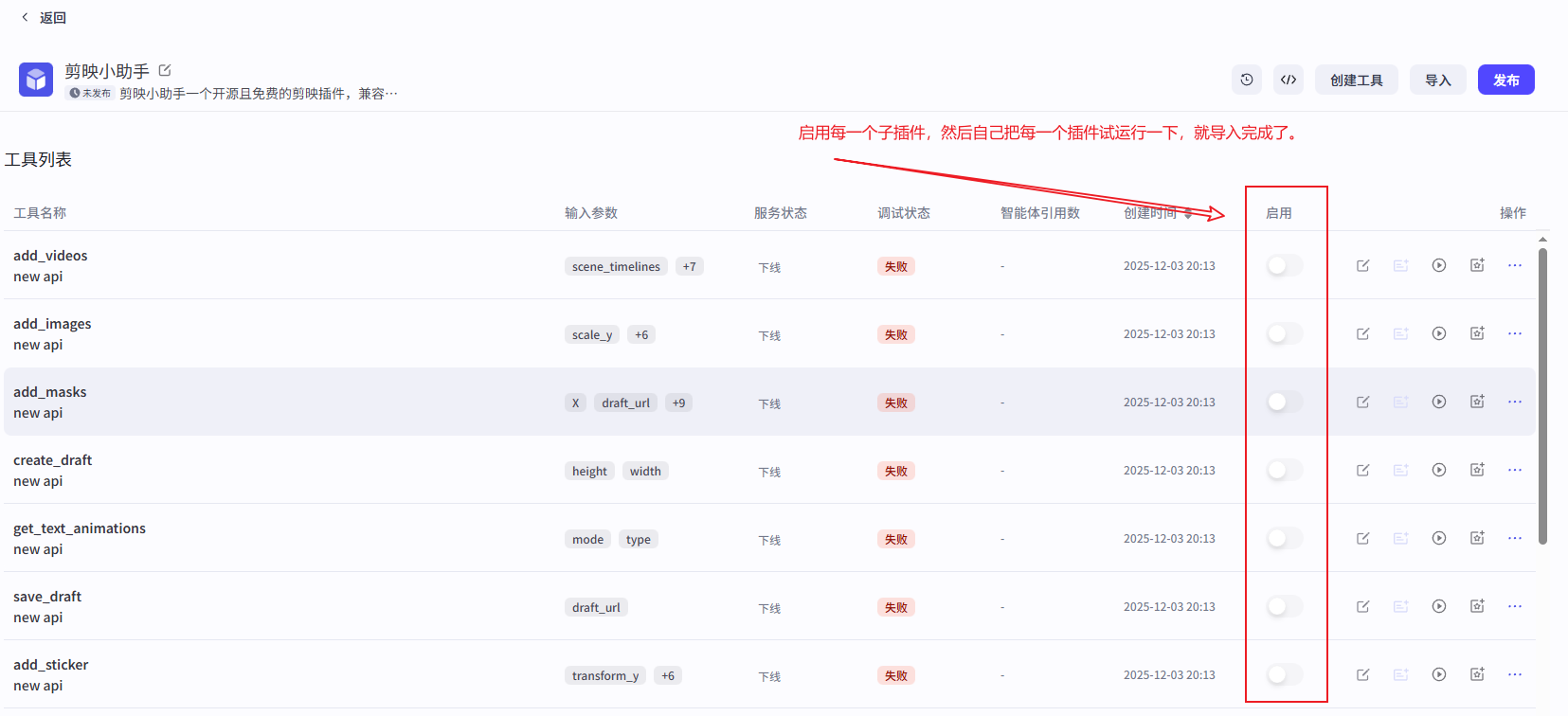
Enable Plugin
API Documentation
The following are the core interfaces provided by CapCut Mate API, supporting a complete video creation workflow:
🏗️ Draft Management
| Interface |
Function |
Description |
Documentation Link |
| create_draft |
Create Draft |
Create a new Jianying draft project, set canvas size |
📖 View Documentation |
| save_draft |
Save Draft |
Save current draft state, ensure edit content persistence |
📖 View Documentation |
| get_draft |
Get Draft |
Get draft file list and detailed information |
📖 View Documentation |
🎥 Video Materials
| Interface |
Function |
Description |
Documentation Link |
| add_videos |
Add Videos |
Batch add video materials, support cropping, scaling, effects |
📖 View Documentation |
| add_images |
Add Images |
Batch add image materials, support animations and transition effects |
📖 View Documentation |
| add_sticker |
Add Stickers |
Add decorative stickers, support position and size adjustment |
📖 View Documentation |
🎵 Audio Processing
| Interface |
Function |
Description |
Documentation Link |
| add_audios |
Add Audios |
Batch add audio materials, support volume and fade in/out |
📖 View Documentation |
| get_audio_duration |
Get Audio Duration |
Get precise duration information of audio files |
📖 View Documentation |
📝 Text Subtitles
| Interface |
Function |
Description |
Documentation Link |
| add_captions |
Add Captions |
Batch add captions, support keyword highlighting and style settings |
📖 View Documentation |
| add_text_style |
Text Style |
Create rich text styles, support keyword colors and fonts |
📖 View Documentation |
✨ Effects & Animations
| Interface |
Function |
Description |
Documentation Link |
| add_effects |
Add Effects |
Add visual effects, such as filters, borders, dynamic effects |
📖 View Documentation |
| add_keyframes |
Keyframe Animation |
Create property animations for position, scale, rotation, etc. |
📖 View Documentation |
| add_masks |
Mask Effects |
Add various shape masks, control visible areas of the screen |
📖 View Documentation |
| add_mask_keyframes |
Mask Keyframes |
Animate mask position, size, feather, and rotation |
📖 View Documentation |
| add_beauty |
Portrait Beautification |
Beauty, face shape, makeup and body sliders (smoothing, whitening, slim face, small head, ...) |
📖 View Documentation |
🎨 Animation Resources
| Interface |
Function |
Description |
Documentation Link |
| get_text_animations |
Text Animations |
Get available text entrance, exit, and loop animations |
📖 View Documentation |
| get_text_effects |
Text Effects |
Get available decorative text flower effects list |
📖 View Documentation |
| get_image_animations |
Image Animations |
Get available image animation effects list |
📖 View Documentation |
🎬 Video Generation
| Interface |
Function |
Description |
Documentation Link |
| gen_video |
Generate Video |
Submit video rendering task, asynchronous processing |
📖 View Documentation |
| gen_video_status |
Query Status |
Query the progress and status of video generation tasks |
📖 View Documentation |
| Interface |
Function |
Description |
Documentation Link |
| easy_create_material |
Quick Creation |
Add multiple types of materials at once, simplify creation process |
📖 View Documentation |
📤 Material Upload
| Interface |
Function |
Description |
Documentation Link |
| upload_file |
Upload File |
Server-relayed upload to object storage (max 500MB, 0.0005 CNY/MB), returns a usable signed URL |
📖 View Documentation |
| Interface |
Function |
Description |
Documentation Link |
| get_url |
Extract URL |
Extract URL information from input content |
📖 View Documentation |
| search_sticker |
Search Sticker |
Search sticker materials by keyword |
📖 View Documentation |
| objs_to_str_list |
Objects to String List |
Convert object list to string list format |
📖 View Documentation |
| str_list_to_objs |
String List to Objects |
Convert string list to object list format |
📖 View Documentation |
| str_to_list |
String to List |
Convert string to list format |
📖 View Documentation |
| timelines |
Create Timelines |
Generate timeline configurations for video editing |
📖 View Documentation |
| audio_timelines |
Audio Timelines |
Calculate timelines based on audio durations |
📖 View Documentation |
| audio_infos |
Audio Information |
Generate audio information from URLs and timelines |
📖 View Documentation |
| imgs_infos |
Image Information |
Generate image information from URLs and timelines |
📖 View Documentation |
| caption_infos |
Caption Information |
Generate caption information from text and timelines |
📖 View Documentation |
| effect_infos |
Effect Information |
Generate effect information from names and timelines |
📖 View Documentation |
| keyframes_infos |
Keyframe Information |
Generate keyframe information from configurations |
📖 View Documentation |
| video_infos |
Video Information |
Generate video information from URLs and timelines |
📖 View Documentation |
API Usage Examples
Workflow Examples
Explore real-world workflow examples to learn how to integrate CapCut Mate with automation platforms like Coze and n8n:
👉 View Workflow Examples
Create Draft
curl -X POST "http://localhost:30000/openapi/capcut-mate/v1/create_draft" \
-H "Content-Type: application/json" \
-d '{"width": 1080, "height": 1920}'
Add Videos
video_infos is a JSON string (not a nested JSON array). Each item must include video_url, start, and end (microseconds on the timeline). See add_videos for optional fields.
curl -X POST "http://localhost:30000/openapi/capcut-mate/v1/add_videos" \
-H "Content-Type: application/json" \
-d '{
  "draft_url": "http://localhost:30000/openapi/capcut-mate/v1/get_draft?draft_id=20251126212753cab03392",
  "video_infos": "[{\"video_url\": \"https://example.com/video.mp4\", \"start\": 0, \"end\": 1000000}]"
}'
API Documentation
Jianying Assistant Client
The Jianying Assistant client provides a convenient desktop interface. Here are the startup methods:
macOS Sandbox Permissions Guide
When running on macOS, the application may request access permissions for specific folders. Please follow these steps:
- If permission prompts appear during the first run, allow the application to access the required folders
- For manual configuration, go to
System Preferences > Security & Privacy > Privacy > Folder Access
- Ensure the CapCut Mate application is added to the allowed list
For more details, please refer to the macOS Sandbox Permissions Configuration Guide.
- Install Dependencies
# Switch npm mirror source - for Windows
set ELECTRON_MIRROR=https://npmmirror.com/mirrors/electron/

# Switch yarn mirror source - for Linux or macOS
export ELECTRON_MIRROR="https://npmmirror.com/mirrors/electron/"

# Install dependencies
npm install --verbose
- Start the Project
npm run web:dev
npm start
| Type |
Method |
Description |
| 📱 WeChat Group |
|
Open Source Community Discussion Group |
| 💬 WeChat |
|
Business Cooperation |
| 📧 Email |
[email protected] |
Technical Support |



 CapCut Mate API 是一个开源的 FastAPI 服务,可自动化 CapCut/剪映的视频剪辑草稿,让你能以编程方式或通过 LLM 创建草稿、添加素材并渲染最终视频。