HiLight Studio
Control the eight-LED HiLight array on Pixel 11 Pro devices.


[!IMPORTANT]
HiLight Studio is experimental and supports only the Pixel 11 Pro, Pixel 11 Pro XL, and Pixel 11 Pro Fold on Android 17 (API 37). It is not affiliated with or endorsed by Google.
Features
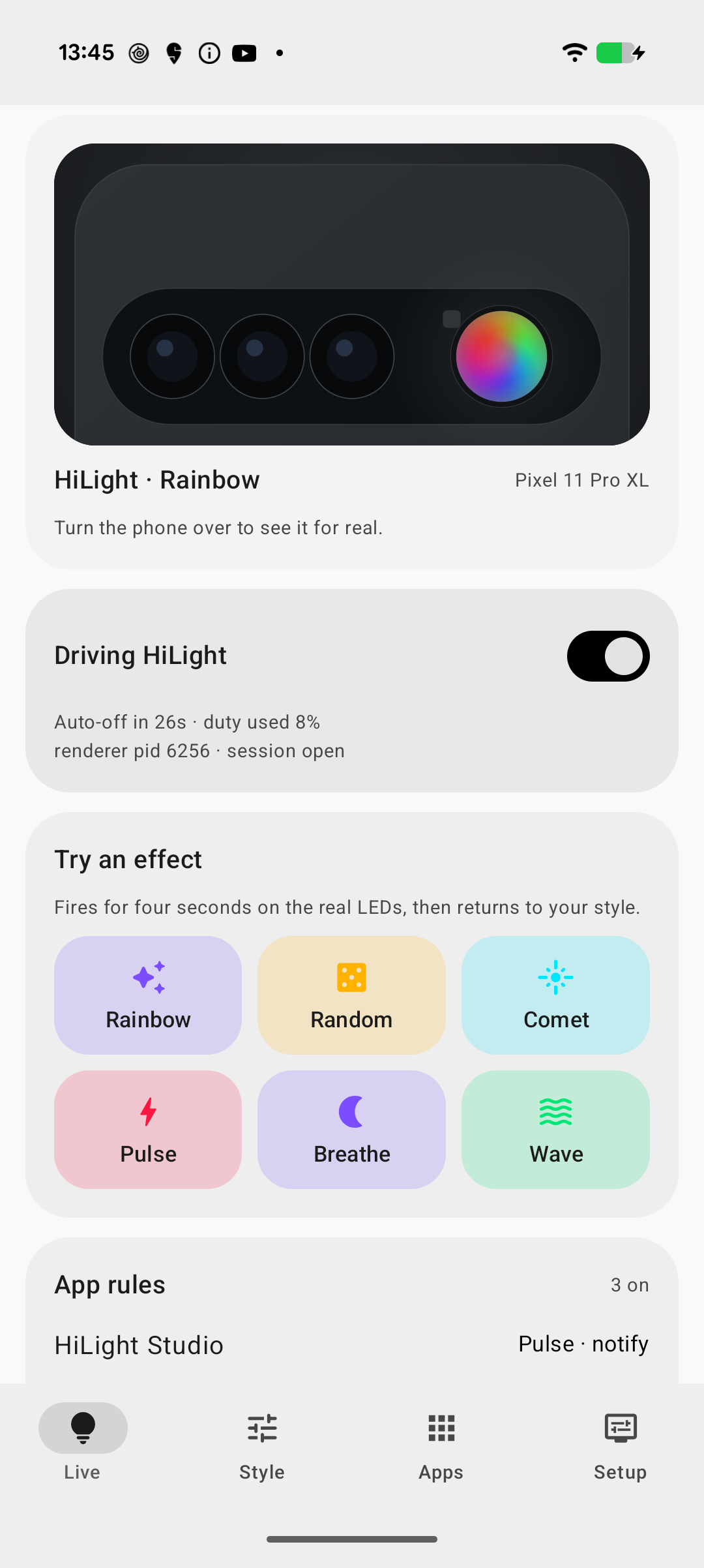
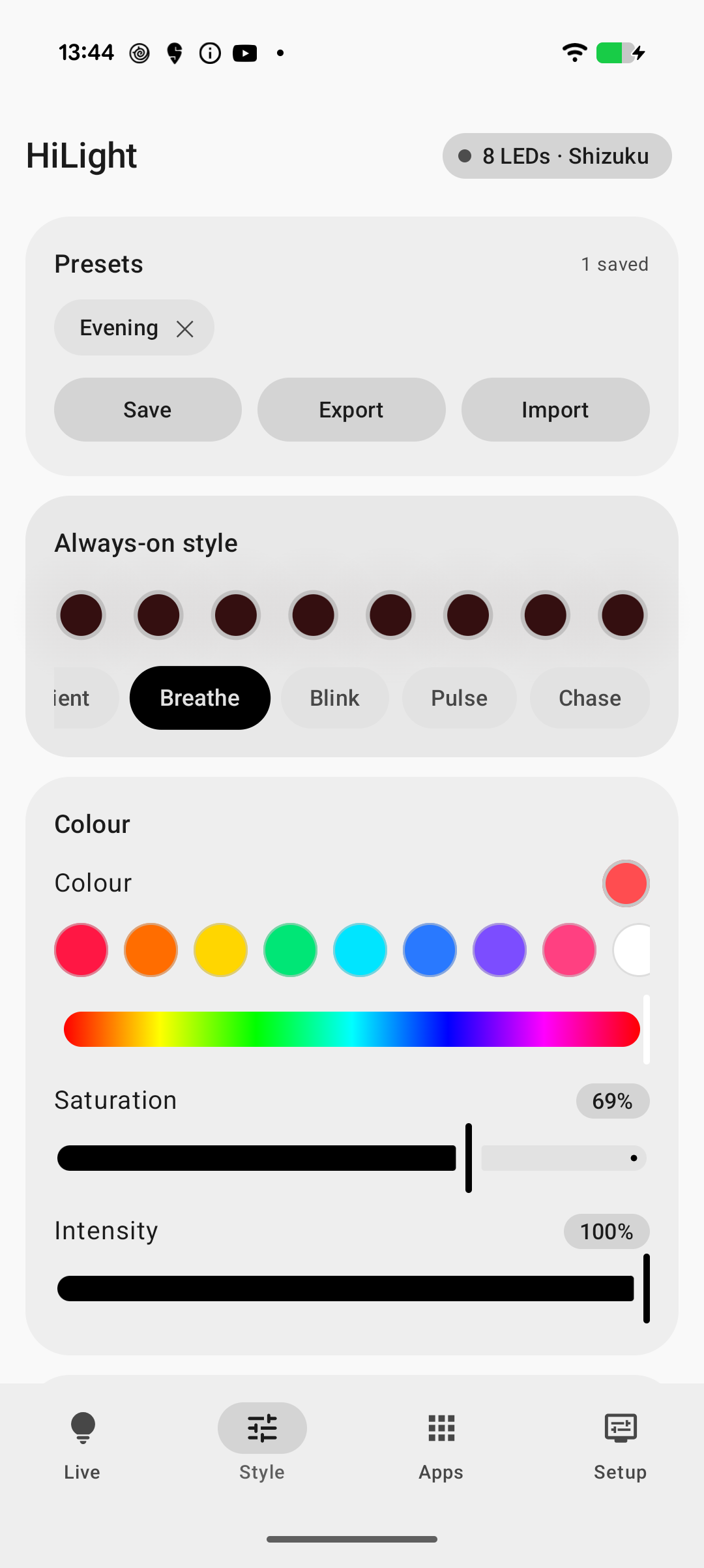
- Solid colours and animated patterns across all eight LEDs
- Per-app rules for foreground use and notifications
- Optional global or per-notification face-down only rules, with a first-use caution and live
position status
- Customisable microphone and camera activity rules, with any built-in animation and colour, for any
app or one selected app
- Per-contact rules: a colour for one person or one chat, picked from the chats HiLight has seen
- Saved presets with import and export
- Wallpaper-derived colours and a Quick Settings tile
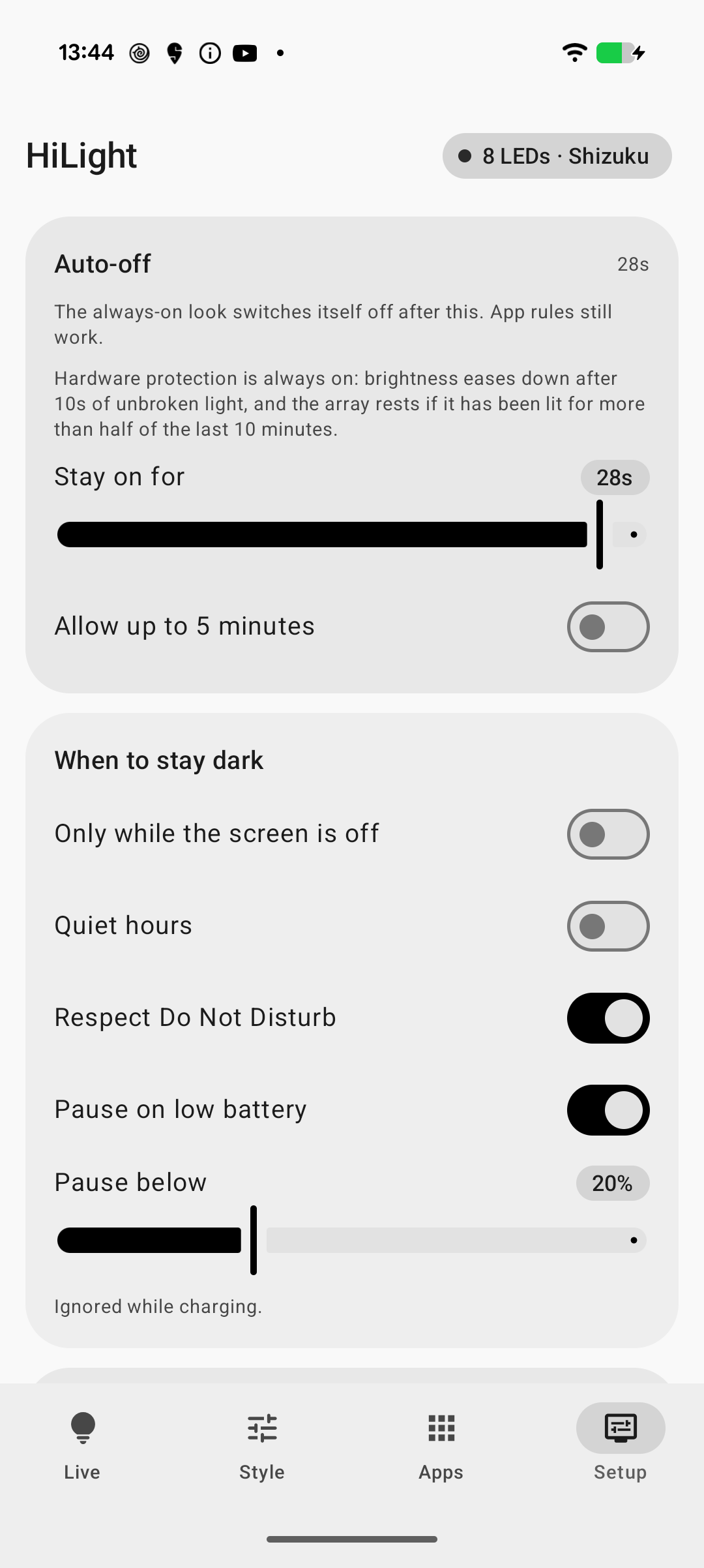
- Quiet hours, Do Not Disturb, Battery Saver, and low-battery controls
- English and Japanese, selectable per app from Android's own language settings
- Automatic root access when available, with Shizuku and ADB as fallbacks
- Privacy-safe renderer diagnostics and a manual black-only LED cleanup retry
- Manual update checks against the project's GitHub releases
Screenshots
Install
Google Play closed test
- Join the tester Google Group with the Google account used on your supported Pixel.
- Open the Play testing page, opt in, and install Highlight Studio from Google Play.
The Play edition installs separately from the experimental GitHub build and starts with its own settings.
GitHub experimental APK
For manual installation, use ADB. Play Protect may block direct installs from a browser or file manager because the app uses notification access for LED alerts.
- Download the signed APK from the latest GitHub prerelease to your computer.
- Connect a supported Pixel with USB debugging enabled and approve the computer on the phone.
- From the folder containing the APK, run:
adb install -r HiLight-Studio-v1.0.12-experimental-signed.apk
If you previously installed v1.0.3 or an older debug-signed build, uninstall it once before installing a permanently signed release because the signing certificates are different:
adb uninstall com.hilight.studio
adb install HiLight-Studio-v1.0.12-experimental-signed.apk
The published APK is an experimental release signed with HiLight Studio's permanent release
certificate. v1.0.12 updates any release carrying that same certificate normally.
HiLight Studio needs privileged access to the Android lights service. The renderer must be restarted after every reboot.
Root
If the phone is rooted, open HiLight Studio and turn it on. The app detects root automatically and
uses it instead of Shizuku or ADB. Approve the one-time request from your root manager when it
appears; no other setup is needed.
Shizuku
- Install Shizuku v12 or newer.
- Start it using Wireless debugging.
- Open HiLight Studio, go to Setup, tap Request access, and approve the request.
Restart Shizuku after each reboot, then reopen HiLight Studio. v1.0.9 checks the renderer identity
before replaying the visible/current state. It may send a minimal disabled state to hold output dark
while an old daemon is removed and rebound once; if ownership is still unresolved, the app fails
closed.
ADB
- Enable Developer options and USB debugging on the phone.
- Install and open HiLight Studio once so it can create its state files.
- In Setup → ADB, copy the single combined command for your desktop shell. It enumerates only the exact HiLight
helper/Shizuku process identities, sends cooperative termination, waits up to 6.5 seconds for
confirmed exit, and only then starts a fresh helper with a per-process instance ID. Starting is
skipped if any old renderer survives. Contributors on macOS or Linux can run
./scripts/start-helper.sh, which applies the same fence.
The helper runs in the background and redirects output to its log, so the combined command normally
prints nothing. Startup can take roughly 2–3 seconds while the renderer completes synchronous
black-only cleanup. Direct AdbHelper launches must pass a valid explicit --instance value; use the
Setup command or script so that identity and the singleton lock are configured correctly.
Check the helper log:
adb shell cat /data/local/tmp/hilight.log
A successful start reports connected: 8 HiLight LEDs. If that message does not appear after the
startup cleanup window, confirm that you copied the command for the correct desktop shell.
Check renderer ownership or report a stuck LED
Only one renderer can drive the array. After cleanup settles, HiLight should own zero sessions while
it is off or dark, and exactly one only while it is visibly driving the LEDs. Under Setup, Copy
LED diagnostics reports this as session.open without copying notification content, package names,
accounts, device identifiers, or logcat.
With no call, Gemini, or other stock Pixel effect active, the total framework session count can also
be checked with:
adb shell dumpsys lights | grep -c "Session token="
Expect 0 after HiLight cleanup settles and 1 while HiLight is visibly driving. If ownership is
wrong, copy and run the current command from Setup → ADB again.
If a physical LED remains lit after an animation expires, turn HiLight off, wait for the automatic
three-pass cleanup to finish, then use Retry LED cleanup under Setup. The retry sends only
black states and does not flash colours. Copy LED diagnostics before restarting anything and attach
it to the bug report with the Pixel model, Android build, transport, pattern, and reproduction count.
The diagnostics can prove what Android accepted and which session closed; only observation of the
phone can prove whether the LED itself switched off. See the
affected-device validation protocol.
After setup, grant Notification access for notification rules and Usage access for
foreground-app rules. Privacy activity rules observe Android's active microphone or camera state in
the privileged renderer and do not need either permission. Turn on Live, then choose a look in
Style. A new installation starts with its always-on style set to Off.
Safety limits
The renderer enforces these limits even if app state is edited:
- Ambient effects stop after 30 seconds by default and can be raised to 5 minutes. The renderer also
enforces that five-minute ceiling, so a modified bridge document cannot bypass it.
- Notification effects are limited to 1 minute.
- Privacy activity rules run only while the microphone or camera remains active. Their default rhythm
is 10 seconds on, 10 seconds off, with a 1-minute maximum per continuous use.
- Sustained brightness tapers after 10 seconds of continuous light.
- The array can be active for at most half of any 10-minute window.
- Battery Saver, low-battery, quiet-hours, screen-state, and Do Not Disturb rules can pause output.
Long, continuous use of the HiLight LEDs has not been tested. If you build the project yourself, you can change the timing and safety values in your copy. Custom builds are your responsibility.
See Technical details for the renderer architecture, hardware findings, device verification, and known limits.
Privacy
HiLight Studio has no analytics, account system, or telemetry. It uses the internet only when you
tap Check for updates under Setup, which fetches public release information from GitHub. No app
rules, notification data, or settings are sent. App rules and presets stay on the device.
Notification and usage access are optional and are used locally for the rules you enable. Privacy
activity rules observe only whether Android reports the microphone or camera as active; HiLight never
reads or records audio, video, or their contents.
Copy LED diagnostics is local and allowlisted. It includes app/device build labels, renderer
identity, transport, session lifecycle, cleanup outcome, and state revisions; it excludes notification
content, package names, accounts, device serial, Android ID, and logcat.
Per-contact rules read the sender's name from the notification itself, so they need no contacts permission — picking a contact by hand uses the system picker, which hands over only the row you tap. HiLight remembers the names of chats it has seen so the picker needs no typing; that list is stored on the device, is capped, and can be cleared at any time with Forget remembered chats under Setup. Message text is never stored, never logged, and never included in anything the notification inspector copies or shares.
Build from source
Requirements:
- JDK 21
- Android SDK platform 37.0
- Android Studio or a command-line Android SDK installation
git clone https://github.com/DhananjayBhosale/hilight-studio.git
cd hilight-studio
./gradlew :app:testDebugUnitTest :app:build :app:lint
Build an installable developer APK with:
./gradlew :app:assembleDebug
The APK is written under app/build/outputs/apk/debug/. You may fork the repository, change the source, and build your own version under the terms of the MIT License.
Contributing
Issues and pull requests are welcome. Hardware reports should include the Pixel model, Android build,
renderer transport, exact steps, reproduction count, and the output of Copy LED diagnostics when
available. Do not include notification contents or other personal data.
Read Contributing before opening a pull request. Security issues must follow the private process in Security policy.
Project documents
License
MIT. You may use, modify, redistribute, and sell the project. Redistributed copies must retain the license notice.
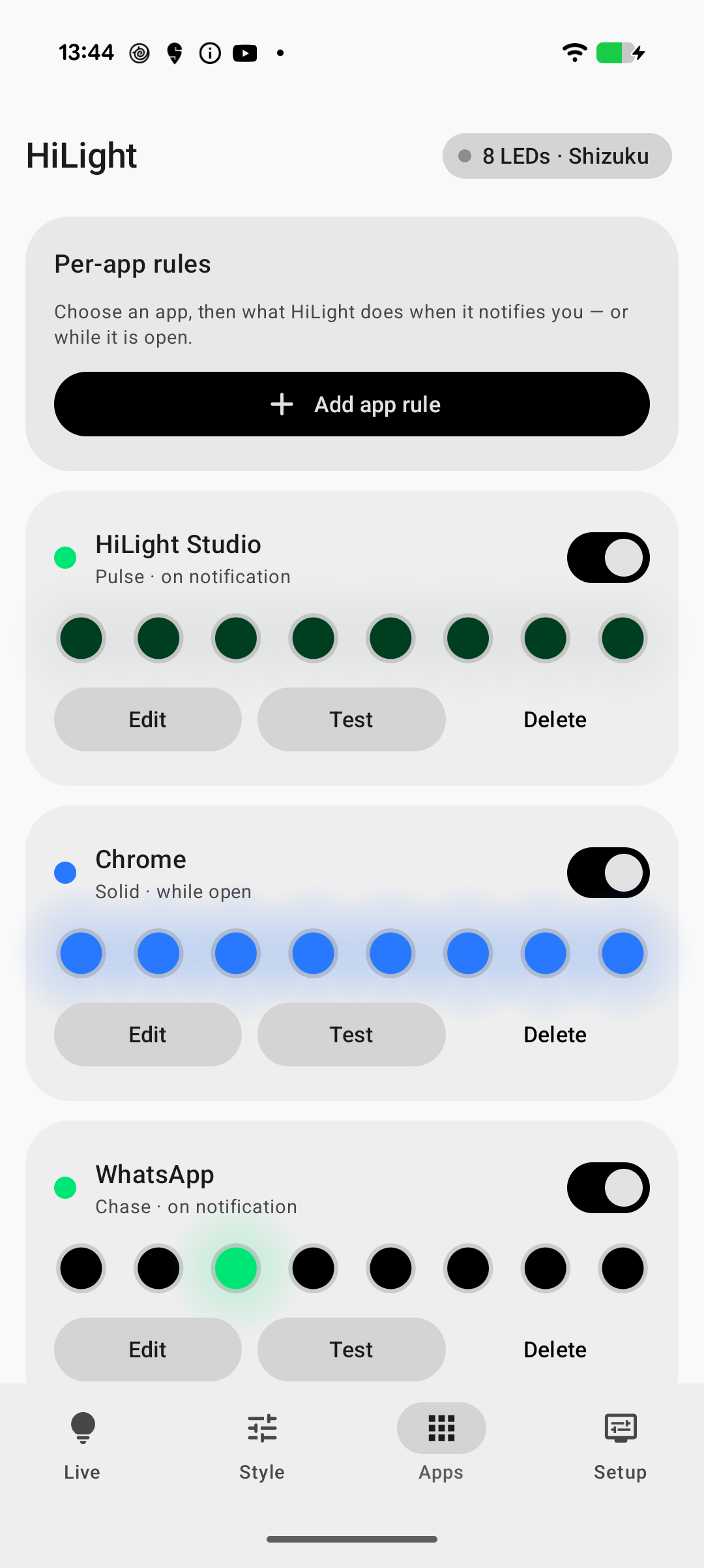

 HiLight Studio 是一款实验性的 Android 应用,用于控制 Pixel 11 Pro 设备背面的八灯 HiLight 阵列,可以设置纯色、动画图案、按应用的规则以及按联系人的通知颜色。