




Ultimate camera streaming application with support for dozens formats and protocols.
Inspired by
Table of Contents
Installation
- Download binary or use Docker or Home Assistant add-on or integration
- Open web interface:
http://localhost:1984/
- Add streams to config
Developers: integrate HTTP API into your smart home platform.
go2rtc: Binary
Download binary for your OS from latest release:
Don't forget to fix the rights chmod +x go2rtc_xxx_xxx on Linux and Mac.
PS. The application is compiled with the latest versions of the Go language for maximum speed and security. Therefore, the minimum OS versions depend on the Go language.
go2rtc: Docker
The Docker containers alexxit/go2rtc and ghcr.io/alexxit/go2rtc support multiple architectures including 386, amd64, arm/v6, arm/v7 and arm64.
These containers offer the same functionality as the Home Assistant add-on but are designed to operate independently of Home Assistant.
It comes preinstalled with FFmpeg and Python.
go2rtc: Home Assistant add-on

- Settings > Add-ons > Plus > Repositories > Add
https://github.com/AlexxIT/hassio-addons
- go2rtc > Install > Start
go2rtc: Home Assistant Integration
WebRTC Camera custom component can be used on any Home Assistant installation, including HassWP on Windows. It can automatically download and use the latest version of go2rtc. Or it can connect to an existing version of go2rtc. Addon installation in this case is optional.
go2rtc: Master version
Latest, but maybe unstable version:
- Binary: latest master build
- Docker:
alexxit/go2rtc:master or alexxit/go2rtc:master-hardware versions
- Home Assistant add-on:
go2rtc master or go2rtc master hardware versions
Configuration
This is the go2rtc.yaml file in YAML-format.
The configuration can be changed in the WebUI at http://localhost:1984.
The editor provides syntax highlighting and checking.
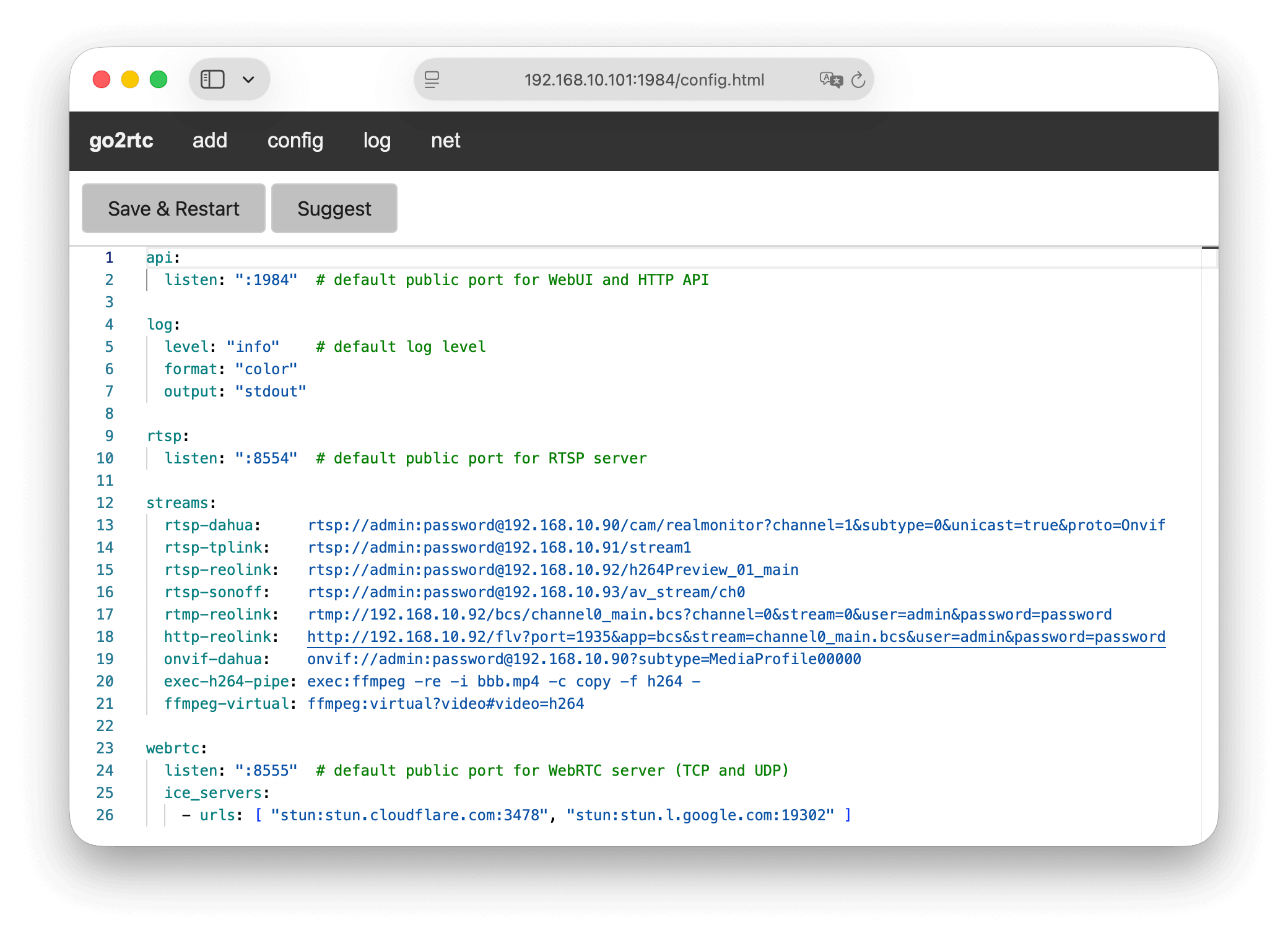
The simplest config looks like this:
streams:
  hall-camera: rtsp://admin:[email protected]/cam/realmonitor?channel=1&subtype=0
- by default go2rtc will search
go2rtc.yaml in the current work directory
api server will start on default 1984 port (TCP)rtsp server will start on default 8554 port (TCP)webrtc will use port 8555 (TCP/UDP) for connections
More information can be found here.
Features
A summary table of all modules and features can be found here.
Core modules
public protocols
mpjpeg - The legacy but still used MJPEG protocol for real-time media transmission.onvif - A popular ONVIF protocol for receiving media in RTSP format.rtmp - The legacy but still used RTMP protocol for real-time media transmission.rtsp - The most common RTSP protocol for real-time media transmission.webrtc - WebRTC web-compatible protocol for real-time media transmission.yuv4mpegpipe - Raw YUV frame stream with YUV4MPEG header.
private protocols
devices
files
scripts
echo - If the source has a dynamic link, you can use a bash or python script to get it.exec - You can run an external application (ffmpeg, gstreamer, rpicam, etc.) and receive a media stream from it.expr - If the source has a dynamic link, you can use Expr language to get it.ffmpeg - Use FFmpeg as a stream source. Hardware-accelerated transcoding and streaming from USB devices are supported.
webrtc
Streaming output
Streaming ingest
Supported for:
flv,
mjpeg,
mpegts,
rtmp,
rtsp,
webrtc.
This is a feature when go2rtc expects to receive an incoming stream from an external application. The stream transmission is started and stopped by an external application.
- You can push data only to an existing stream (create a stream with empty source in config).
- You can push multiple incoming sources to the same stream.
- You can push data to a non-empty stream, so it will have additional codecs inside.
Two-way audio
Supported for:
doorbird,
dvrip,
exec,
isapi,
multitrans,
ring,
roborock,
rtsp,
tapo,
tuya,
webrtc,
wyze,
xiaomi.
Two-way audio can be used in browser with WebRTC technology. The browser will give access to the microphone only for HTTPS sites (read more).
Stream to camera
You can play audio files or live streams on any camera with two-way audio support.
read more
Publish stream
You can publish any stream to streaming services (YouTube, Telegram, etc.) via RTMP/RTMPS.
read more
Preload stream
You can preload any stream on go2rtc start. This is useful for cameras that take a long time to start up.
read more
Streaming stats
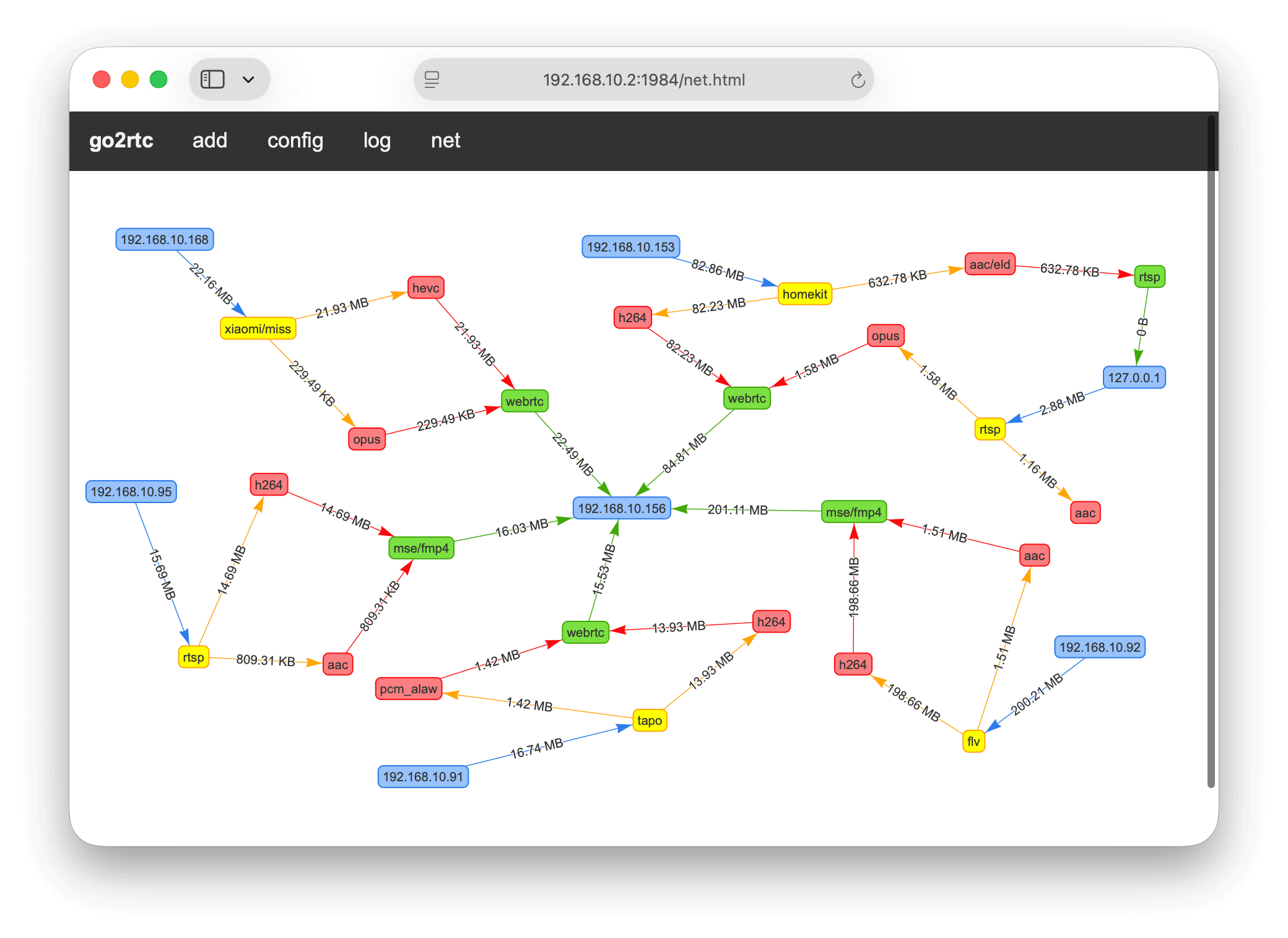
WebUI provides detailed information about all active connections, including IP-addresses, formats, protocols, number of packets and bytes transferred.
Via the HTTP API in json or dot format on an interactive connection map.
Codecs
If you have questions about why video or audio is not displayed, you need to read the following sections.
| Name |
FFmpeg |
RTSP |
Aliases |
| Advanced Audio Coding |
aac |
MPEG4-GENERIC |
|
| Advanced Video Coding |
h264 |
H264 |
AVC, H.264 |
| G.711 PCM (A-law) |
alaw |
PCMA |
G711A |
| G.711 PCM (µ-law) |
mulaw |
PCMU |
G711u |
| High Efficiency Video Coding |
hevc |
H265 |
HEVC, H.265 |
| Motion JPEG |
mpjpeg |
JPEG |
|
| MPEG-1 Audio Layer III |
mp3 |
MPA |
|
| Opus Codec |
opus |
OPUS |
|
| PCM signed 16-bit big-endian |
s16be |
L16 |
|
Codecs filters
go2rtc can automatically detect which codecs your device supports for WebRTC and MSE technologies.
But it cannot be done for RTSP, HTTP progressive streaming, HLS technologies.
You can manually add a codec filter when you create a link to a stream.
The filters work the same for all three technologies.
Filters do not create a new codec, they only select the suitable codec from existing sources.
You can add new codecs to the stream using the FFmpeg transcoding.
Without filters:
- RTSP will provide only the first video and only the first audio (any codec)
- MP4 will include only compatible codecs (H264, H265, AAC)
- HLS will output in the legacy TS format (H264 without audio)
Some examples:
rtsp://192.168.1.123:8554/camera1?mp4 - useful for recording as MP4 files (e.g. Home Assistant or Frigate)rtsp://192.168.1.123:8554/camera1?video=h264,h265&audio=aac - full version of the filter abovertsp://192.168.1.123:8554/camera1?video=h264&audio=aac&audio=opus - H264 video codec and two separate audio tracksrtsp://192.168.1.123:8554/camera1?video&audio=all - any video codec and all audio codecs as separate trackshttp://192.168.1.123:1984/api/stream.m3u8?src=camera1&mp4 - HLS stream with MP4 compatible codecs (HLS/fMP4)http://192.168.1.123:1984/api/stream.m3u8?src=camera1&mp4=flac - HLS stream with PCMA/PCMU/PCM audio support (HLS/fMP4), won't work on old deviceshttp://192.168.1.123:1984/api/stream.mp4?src=camera1&mp4=flac - MP4 file with PCMA/PCMU/PCM audio support, won't work on old devices (ex. iOS 12)http://192.168.1.123:1984/api/stream.mp4?src=camera1&mp4=all - MP4 file with non-standard audio codecs, won't work on some players
Codecs madness
AVC/H.264 video can be played almost anywhere. But HEVC/H.265 has many limitations in supporting different devices and browsers.
| Device |
WebRTC |
MSE |
HTTP* |
HLS |
| latency |
best |
medium |
bad |
bad |
Desktop Chrome 136+
Desktop Edge
Android Chrome 136+ |
H264, H265*
PCMU, PCMA
OPUS |
H264, H265*
AAC, FLAC*
OPUS |
H264, H265*
AAC, FLAC*
OPUS, MP3 |
no |
| Desktop Firefox |
H264
PCMU, PCMA
OPUS |
H264
AAC, FLAC*
OPUS |
H264
AAC, FLAC*
OPUS |
no |
Desktop Safari 14+
iPad Safari 14+
iPhone Safari 17.1+ |
H264, H265*
PCMU, PCMA
OPUS |
H264, H265
AAC, FLAC* |
no! |
H264, H265
AAC, FLAC* |
| iPhone Safari 14+ |
H264, H265*
PCMU, PCMA
OPUS |
no! |
no! |
H264, H265
AAC, FLAC* |
| macOS Hass App |
no |
no |
no |
H264, H265
AAC, FLAC* |
Audio
- go2rtc supports automatic repackaging of
PCMA/PCMU/PCM codecs into FLAC for MSE/MP4/HLS so they'll work almost anywhere
- WebRTC audio codecs:
PCMU/8000, PCMA/8000, OPUS/48000/2
OPUS and MP3 inside MP4 are part of the standard, but some players do not support them anyway (especially Apple)
Apple devices
- all Apple devices don't support HTTP progressive streaming
- old iPhone firmwares don't support MSE technology because it competes with the HTTP Live Streaming (HLS) technology, invented by Apple
- HLS is the worst technology for live streaming, it still exists only because of iPhones
Built-in transcoding
There are no plans to embed complex transcoding algorithms inside go2rtc.
FFmpeg source does a great job with this.
Including hardware acceleration support.
But go2rtc has some simple algorithms. They are turned on automatically; you do not need to set them up additionally.
PCM for MSE/MP4/HLS
Go2rtc can pack PCMA, PCMU and PCM codecs into an MP4 container so that they work in all browsers and all built-in players on modern devices. Including Apple QuickTime:
PCMA/PCMU => PCM => FLAC => MSE/MP4/HLS
Resample PCMA/PCMU for WebRTC
By default WebRTC supports only PCMA/8000 and PCMU/8000. But go2rtc can automatically resample PCMA and PCMU codecs with a different sample rate. Also, go2rtc can transcode PCM codec to PCMA/8000, so WebRTC can play it:
PCM/xxx => PCMA/8000 => WebRTC
PCMA/xxx => PCMA/8000 => WebRTC
PCMU/xxx => PCMU/8000 => WebRTC
Important
- FLAC codec not supported in an RTSP stream. If you are using Frigate or Home Assistant for recording MP4 files with PCMA/PCMU/PCM audio, you should set up transcoding to the AAC codec.
- PCMA and PCMU are VERY low-quality codecs. They support only 256! different sounds. Use them only when you have no other options.
Codecs negotiation
For example, you want to watch an RTSP stream from a Dahua IPC-K42 camera in your Chrome browser.
- this camera supports two-way audio standard ONVIF Profile T
- this camera supports codecs H264, H265 for sending video, and you select
H264 in camera settings
- this camera supports codecs AAC, PCMU, PCMA for sending audio (from mic), and you select
AAC/16000 in camera settings
- this camera supports codecs AAC, PCMU, PCMA for receiving audio (to speaker), you don't need to select them
- your browser supports codecs H264, VP8, VP9, AV1 for receiving video, you don't need to select them
- your browser supports codecs OPUS, PCMU, PCMA for sending and receiving audio, you don't need to select them
- you can't get the camera audio directly because its audio codecs don't match your browser's codecs
- so you decide to use transcoding via FFmpeg and add this setting to the config YAML file
- you have chosen
OPUS/48000/2 codec, because it is higher quality than the PCMU/8000 or PCMA/8000
Now you have a stream with two sources - RTSP and FFmpeg:
streams:
  dahua:
    - rtsp://admin:[email protected]/cam/realmonitor?channel=1&subtype=0&unicast=true&proto=Onvif
    - ffmpeg:rtsp://admin:[email protected]/cam/realmonitor?channel=1&subtype=0#audio=opus
go2rtc automatically matches codecs for your browser across all of your stream sources. This is called multi-source two-way codec negotiation, and it's one of the main features of this app.
PS. You can select PCMU or PCMA codec in camera settings and not use transcoding at all. Or you can select AAC codec for main stream and PCMU codec for second stream and add both RTSP to YAML config, this also will work fine.
Security
[!IMPORTANT]
If an attacker gains access to the API, you are in danger. Through the API, an attacker can use insecure sources such as echo and exec. And get full access to your server.
For maximum (paranoid) security, go2rtc has special settings:
app:
  # use only allowed modules
  modules: [api, rtsp, webrtc, exec, ffmpeg, mjpeg]

api:
  # use only allowed API paths
  allow_paths: [/api, /api/streams, /api/webrtc, /api/frame.jpeg]
  # enable auth for localhost (used together with username and password)
  local_auth: true

exec:
  # use only allowed exec paths
  allow_paths: [ffmpeg]
By default, go2rtc starts the Web interface on port 1984 and RTSP on port 8554, as well as uses port 8555 for WebRTC connections. The three ports are accessible from your local network. So anyone on your local network can watch video from your cameras without authorization. The same rule applies to the Home Assistant add-on.
This is not a problem if you trust your local network as much as I do. But you can change this behaviour with a go2rtc.yaml config:
api:
  listen: "127.0.0.1:1984" # localhost

rtsp:
  listen: "127.0.0.1:8554" # localhost

webrtc:
  listen: ":8555" # external TCP/UDP port
- local access to RTSP is not a problem for FFmpeg integration, because it runs locally on your server
- local access to API is not a problem for the Home Assistant add-on, because Home Assistant runs locally on the same server, and the add-on web UI is protected with Home Assistant authorization (Ingress feature)
- external access to WebRTC TCP port is not a problem, because it is used only for transmitting encrypted media data
- anyway you need to open this port to your local network and to the Internet for WebRTC to work
If you need web interface protection without the Home Assistant add-on, you need to use a reverse proxy, like Nginx, Caddy, etc.
PS. Additionally, WebRTC will try to use the 8555 UDP port to transmit encrypted media. It works without problems on the local network, and sometimes also works for external access, even if you haven't opened this port on your router (read more). But for stable external WebRTC access, you need to open the 8555 port on your router for both TCP and UDP.
Projects using go2rtc
Distributions
Camera experience
- Dahua - reference implementation streaming protocols, a lot of settings, high stream quality, multiple streaming clients
- EZVIZ - awful RTSP protocol implementation, many bugs in SDP
- Hikvision - a lot of proprietary streaming technologies
- Reolink - some models have an awful, unusable RTSP implementation and not the best RTMP alternative (I recommend that you contact Reolink support for new firmware), few settings
- Sonoff - very low stream quality, no settings, not the best protocol implementation
- TP-Link - few streaming clients, packet loss?
- Cheap noname cameras, Wyze Cams, Xiaomi cameras with hacks (usually have
/live/ch00_1 in RTSP URL) - awful but usable RTSP protocol implementation, low stream quality, few settings, packet loss?
Tips
Using apps for low RTSP delay
ffplay -fflags nobuffer -flags low_delay "rtsp://192.168.1.123:8554/camera1"- VLC > Preferences > Input / Codecs > Default Caching Level: Lowest Latency
Snapshots to Telegram
read more

 An ultimate camera streaming app: it pulls video from IP cameras and other sources and re-serves it in low-latency formats like WebRTC, HLS and MP4 to browsers and smart home platforms, as a standalone app or embedded into any project.