475 ·GitHub
A native macOS menu-bar app for Xiaomi / Mijia smart home devices, with a companion Windows 11 tray build.
The project's README from github.com/jryang1997/MenuBarMijia. As one markdown file: README.md.
English | 简体中文

Control your entire home right from your computer, without picking up your phone.
A native macOS menu-bar app for Xiaomi / Mijia smart home devices, with a companion Windows 11 tray build.
Scan a QR code to connect directly to Mi Home without setting up Home Assistant. Features keyboard fuzzy search, push-to-talk voice, Mac event automation, and one-click undo.


Official website · Download latest · Install & Connect · Platform Comparison · Safety & Privacy · Changelog
# Recommended one-line installation on macOS via Homebrew Cask
brew install --cask jryang1997/tap/menubarmijia
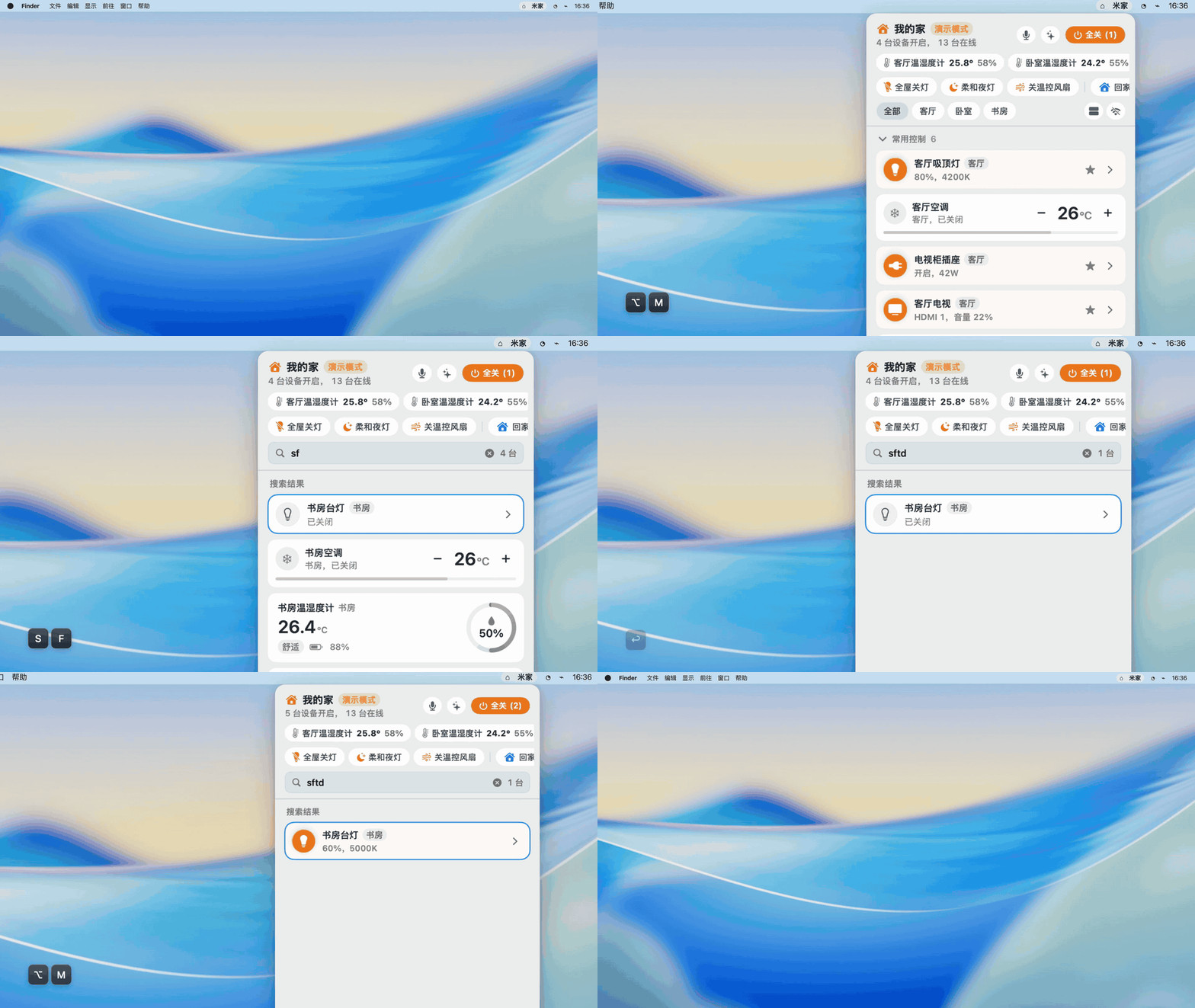
macOS demo mode with simulated devices.
When coding, writing, or in a meeting, you don't need to reach for your phone:
⌥M to summon the panel, type a name or pinyin initials (e.g. sftd for "Study Desk Lamp"), and hit Return to toggle. Open a device’s details and use the arrow keys to adjust brightness or AC temperature. No scrolling through nested room trees.⌥M or the menu bar icon to speak your command, and release when you are done. Everyday commands like switching lights or setting the thermostat are interpreted by local parsing rules—no wake words, no sluggish voice chatter. Optional AI backends handle multi-step requests.Here are a few everyday actions in the macOS demo home. The interface shown is in Chinese.
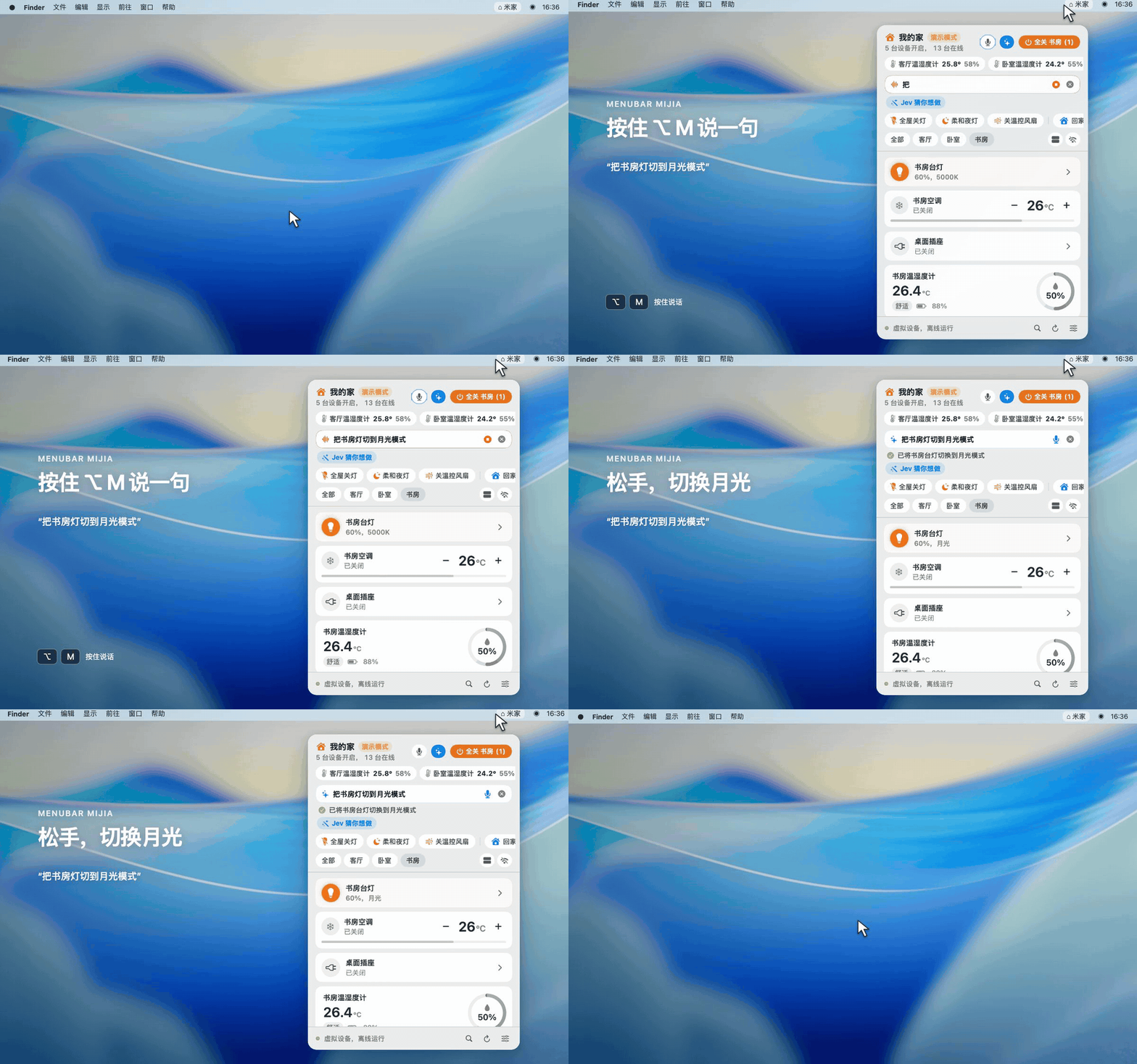
No wake words needed. Hold the menu bar icon or global shortcut to speak, and see execution receipts right away (showing local millisecond execution or AI resolution).
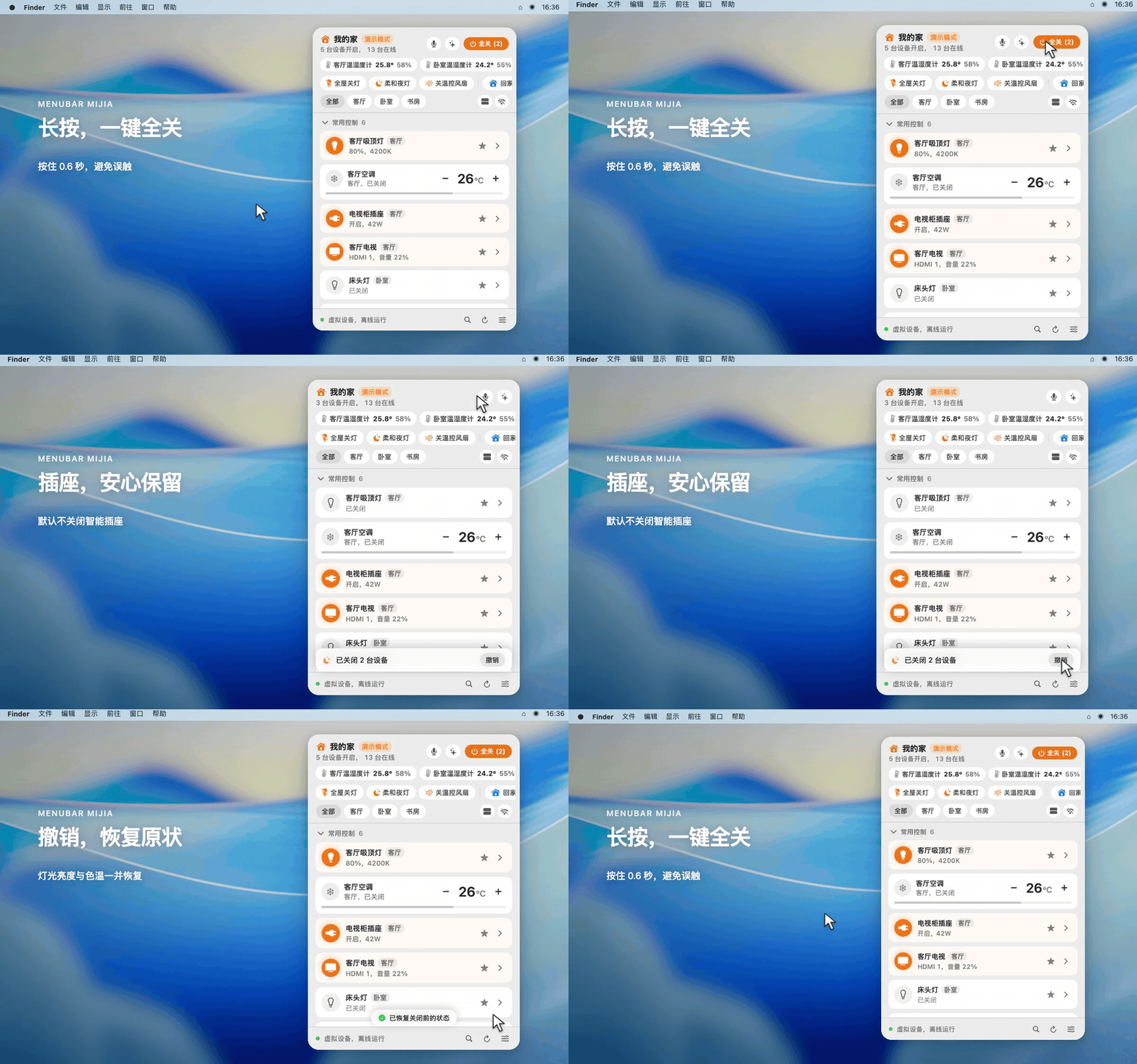
Heading out or turning in? Hold "All Off" for 0.6 seconds to switch off participating devices in the current view. Plugs, robot vacuums, and cameras are left alone by default, and you can change that in settings. If you switch something off by mistake, tap Undo.
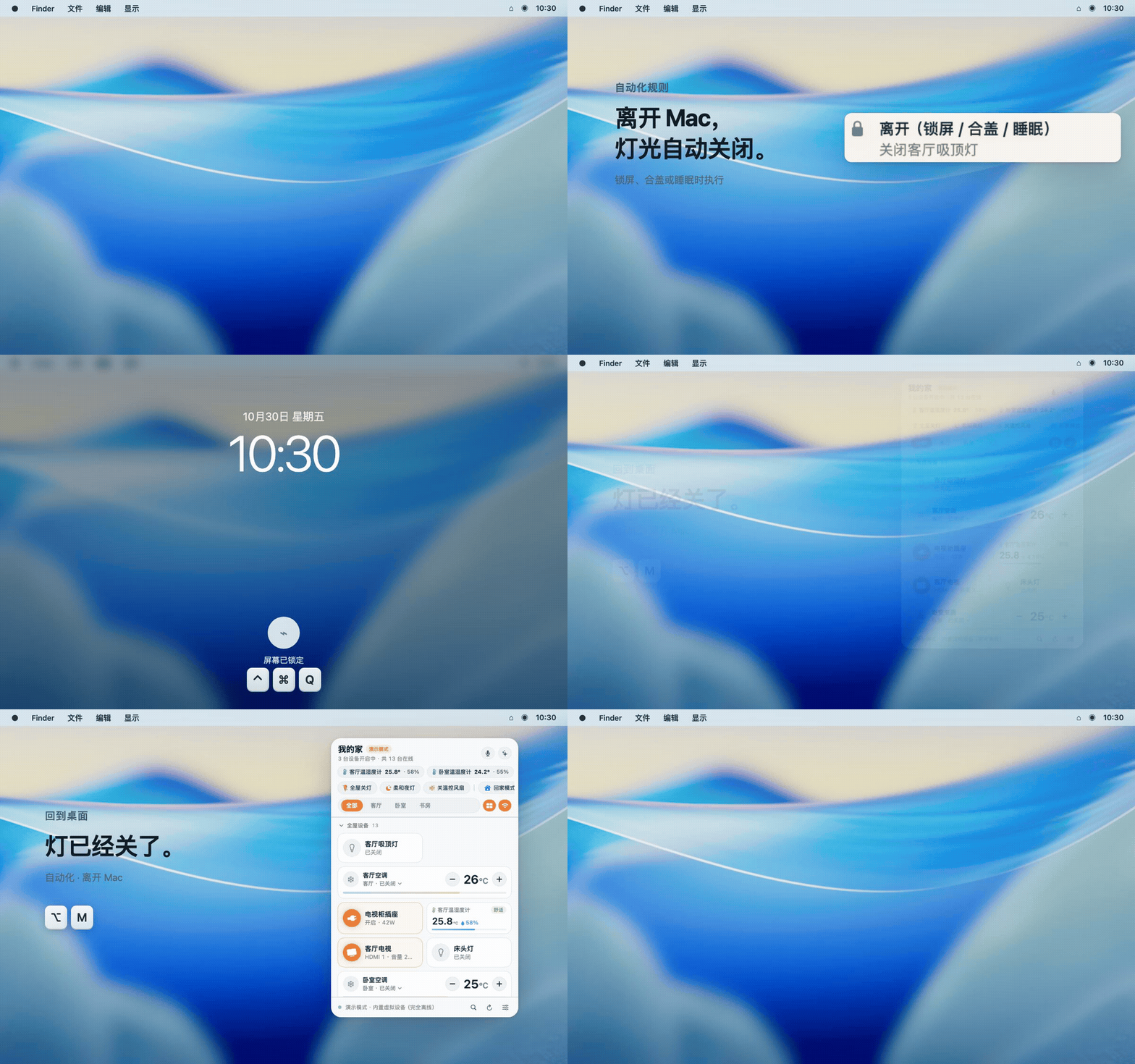
Turn everyday desktop transitions into ambient triggers. Configure a rule to turn off lights when you lock your screen or put your Mac to sleep. You can also configure a separate rule for returning.
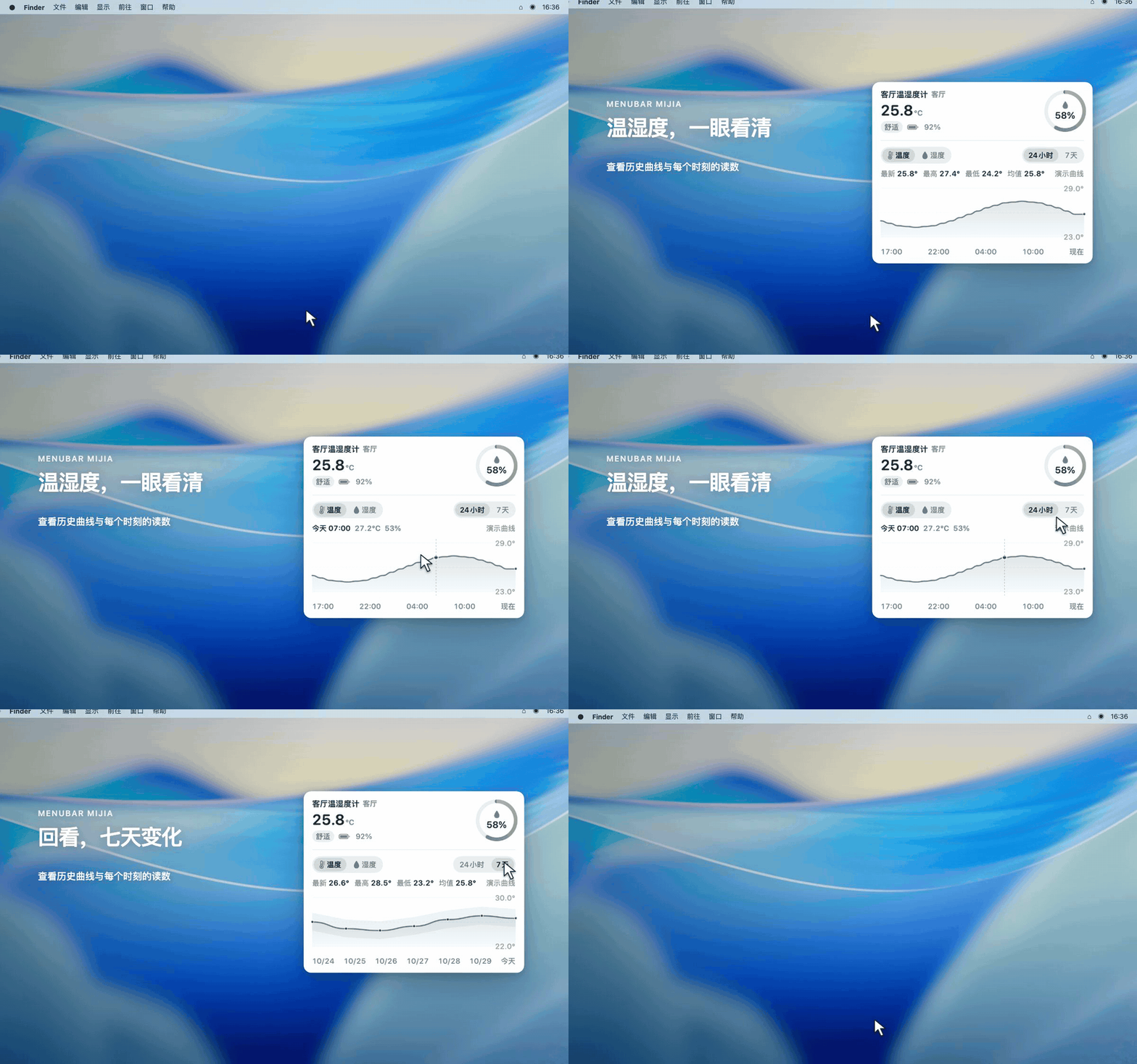
Wondering whether the room is warmer than yesterday? On macOS, open a sensor to see its temperature and humidity trends over 24 hours or 7 days. For plugs that report energy readings, device details show today’s usage and settings show the last 7 days.
The macOS version is built natively in Swift 6, while the Windows 11 client is an independent implementation using Tauri v2 and TypeScript. Both share verified golden fixtures (Tests/Fixtures/) for protocol and intent matching, while respecting system platform differences.
| Feature Area | macOS Native (14+) | Windows 11 Tray | Details |
|---|---|---|---|
| Mi Home Direct QR Connect | ✅ Supported | ✅ Supported | Scan with Mi Home app; supports CN, SG, DE, US, and RU regional servers |
| Home Assistant Integration | ✅ Supported | ✅ Supported | Native WebSocket connection with xiaomi_home entity synthesis and physical-device grouping |
| Keyboard Search & Control | ✅ Supported | — Not yet | On macOS, search by device name or pinyin initials and use arrow keys to control devices |
| Global Activation Hotkey | ✅ ⌥M (Customizable) |
✅ Alt+M (Customizable) |
Windows 1.1.4 adds custom key recording with collision detection |
| Voice Interaction | ✅ Menu bar hold / Hotkey hold / Hands-free | ⚠️ Hands-free only | macOS supports native Speech frameworks; Windows uses WebView speech recognition |
| Local Command Parsing | ✅ Supported | ✅ Supported | Power, brightness, temp, fan speeds, and timers are parsed locally |
| Optional AI Assistant | ✅ Supported | ✅ Supported | Connect Jev, DeepSeek, Ollama, etc. Actions with <80% confidence require confirmation |
| Proactive "For You" Suggestions | ✅ Up to 4 chips | ✅ Up to 4 pills | Manual card actions train time-bucket and weekday/weekend habits with a 14-day decay half-life and next-action prediction (undo rolls them back; see ADR-0009). Local picks appear immediately; a configured model refreshes the cache in the background. Homes with fewer executable actions show their actual count. |
| GrokBall & Side Suggestions | ✅ Native Canvas | ✅ Bundled SVG engine | Click the ball for up to four reversible device actions; click again or press Esc to collapse. On macOS, neutral expressions use a black ball with white eyes, dragging repositions it, and a 0.5-second hold starts voice input. Suggestions follow its side of the panel and adapt their rows near screen edges. The Mac top quick-actions row is removed; scenes remain available through spoken or typed commands. Windows retains the fixed side attachment. Eyes follow the pointer, and Reduce Motion uses static expressions. Based on TyCoding/grok-ball (MIT). |
| All-Off & Instant Undo | ✅ Supported | ✅ Supported | A 0.6s hold confirms the action; plugs and vacuums are excluded by default; reversible actions show an undo banner for 10–15s |
| Mac Event Automation | ✅ Supported | — Not yet | Event triggers on screen lock, sleep, wake, and external display connections |
| Apple Shortcuts (App Intents) | ✅ Supported (4 actions) | — Not yet | Toggle Device, Run Scene, Voice Command, Query Room Climate |
| URL Scheme Control | ✅ Supported | — Not yet | menumijia://toggle calls require confirmation by default; direct control can be enabled in settings |
| Sensor Trend Line Charts | ✅ 24h / 7d trends | ⚠️ Real-time value only | macOS charts temperature or humidity over selectable periods; Windows shows current readings |
| Smart Plug Energy Logs | ✅ Supported | — No history yet | macOS counts changes in cumulative hardware readings; missing data is not estimated |
| Mi Air Purifiers | ✅ Supported | ✅ Supported | Both platforms synthesize air-purifier specs: PM2.5, air quality, temp/humidity, filter life, and a 1–100% fan slider driving the favorite level |
| Camera Live View | ✅ Supported | ✅ Supported | Click a card for a pinned live window: macOS uses HLS / HA snapshots; Windows ships a private P2P bridge (substream MJPEG) |
| Layout Editing Resize | ✅ Supported | ✅ Supported | Edit mode shows an iOS Control Center-style corner arc handle on each card's bottom-right: drag out/in to step half ↔ full ↔ panel, or tap it to cycle sizes |
| Visual Look | ✅ One system look + 4 heights | ✅ Control Center design | macOS keeps system materials only: a device that is on takes the loudest surface its appearance allows — a bright platter in light mode, a lifted well one step above the off glass in dark mode — everything else stays quiet glass. |
| Code Signing & Integrity | ⚠️ Self-signed + Ed25519 updates | ⚠️ Unsigned package | macOS requires manual Gatekeeper approval; Windows shows SmartScreen prompt |
Method A: Homebrew Cask (Recommended)
brew install --cask jryang1997/tap/menubarmijia
If Homebrew asks to trust a new third-party tap, run
brew trust --cask jryang1997/tap/menubarmijiafirst.
Method B: Direct DMG Download
Download the latest macOS DMG from GitHub Releases and drag MenuBarMijia.app into your Applications folder.
About macOS Gatekeeper:
This project is an independent open-source tool and is not enrolled in the paid Apple Developer Program (no Developer ID notarization). If Gatekeeper blocks initial launch, open System Settings → Privacy & Security, scroll down, and click "Open Anyway" for MenuBarMijia.
Download the latest Windows x64 .exe or .msi from GitHub Releases.
About Windows SmartScreen:
The Windows binary is not signed with an enterprise Authenticode certificate. If SmartScreen shows "Windows protected your PC", click "More info" → "Run anyway". SHA-256 digests are published on each Release for manual verification.
Click the menu bar icon to reveal the panel, then open Settings ⚙️:
http://192.168.1.100:8123, and Long-Lived Access Token. On Windows, save settings and approve the endpoint in the native dialog. The token stays in Windows Credential Manager. A rejected or failed connection never switches to demo. Windows supports the existing light, climate, fan, plug, vacuum, camera-control, and sensor card models, plus scenes and scripts. macOS-only device types and HA camera live streams are outside this Windows backend.These panel shortcuts apply to macOS. On Windows, the default shortcut to open the panel is Alt+M.
| Shortcut | Action |
|---|---|
⌥M |
Toggle the MenuBarMijia panel |
| Type letters | Instant search by device name, room, or pinyin initials (e.g. sftd) |
↑ / ↓ |
Navigate through search matches and device cards |
Return / Space |
Toggle the focused device; expand the detail drawer if not directly switchable |
→ / ← |
Press Right to open details; then use Left and Right to adjust light brightness, AC temperature, or volume |
Tab |
Switch between room tabs |
Esc |
Clear search query, close drawer, or dismiss panel |
These phrases are parsed locally without any AI API key or cloud model tokens:
MenuBarMijia is an independent open-source project, not an official Xiaomi app. Mi Home cloud control needs an internet connection. You can connect your own Home Assistant instance on macOS or Windows.
Account credentials and AI keys are stored in the macOS Keychain or Windows Credential Manager. macOS may ask for Keychain permission after an update. When migrating credentials from an older version, the plaintext copy is removed after the Keychain accepts it.
Everyday commands are handled by local rules. You can also connect an AI service of your choice for more complex requests. The request includes your command, device and environment information, and any habit summary you have enabled. Manual card actions also train local time-bucket habit memories (used only for the "For You" suggestions); the habit learning toggle turns this off, learned entries can be reviewed and cleared, and undoing a banner rolls the matching records back. Speech recognition uses system services; on-device-only recognition is available for supported languages.
To help prevent mistakes, low-confidence AI suggestions and actions such as turning on a heater, switching a plug, or starting a vacuum wait for your confirmation. URL controls also ask first by default, with an option to enable direct control.
The macOS app is not yet notarized by Apple, so you may need to allow it in System Settings the first time. Windows may show a SmartScreen prompt. macOS updates are verified with an Ed25519 public key; the signing key stays offline. See ADR-0007 for more on connection options.
MijiaCore with full headless test coverage. The Windows client is built with Tauri v2 (Rust + TypeScript + Vite).Tests/Fixtures/ (intents, specs, regions, AI payloads) to prevent behavioral drift (see ADR-0006).# Run secret checks, linters, and Swift tests on macOS
bash scripts/check.sh
# Build, sign locally, and launch MenuBarMijia.app
bash scripts/build_app.sh
# Build and test the Windows tray app
cd windows
npm install
npm test
npm run build
Please review CODING_STANDARDS.md before submitting pull requests. Key domain concepts are documented in GLOSSARY.md.
Thanks to everyone who has contributed features, fixes, and feedback:
Thanks to all contributors who have submitted PRs, reported issues, and helped refine the desktop smart home experience! If MenuBarMijia helps you keep your hands on the keyboard, please give it a ⭐ Star on GitHub.
A native macOS menu-bar app for Xiaomi / Mijia smart home devices, with a companion Windows 11 tray build.