




What is this?
 mise is a single CLI that manages your development tools, environment variables, and project tasks. Everything is declared in a mise.toml file you commit, so your shell, editor, and CI all share one setup.
mise is a single CLI that manages your development tools, environment variables, and project tasks. Everything is declared in a mise.toml file you commit, so your shell, editor, and CI all share one setup.So is it a library I add to my code, or something installed on my machine?It's a standalone command-line tool you install on your machine — macOS, Linux, or Windows. Projects just carry a mise.toml file that mise reads.
It's a standalone command-line tool you install on your machine — macOS, Linux, or Windows. Projects just carry a mise.toml file that mise reads.How do I get it running?Install with the mise.run script on macOS or Linux, or 'winget install jdx.mise' on Windows. In a project with a mise.toml, run 'mise install' to set up its tools and 'mise tasks ls' to see what tasks it has.
Install with the mise.run script on macOS or Linux, or 'winget install jdx.mise' on Windows. In a project with a mise.toml, run 'mise install' to set up its tools and 'mise tasks ls' to see what tasks it has.Do I have to edit my shell config for it to work?No — you can run everything through mise without touching your shell. Optionally add one activation line to your shell config so tools and env vars load automatically when you enter a project directory.
No — you can run everything through mise without touching your shell. Optionally add one activation line to your shell config so tools and env vars load automatically when you enter a project directory.If I request Node 22, will my teammates get exactly the same version?Not necessarily: a loose request like '24' selects a release in that series, so resolved versions can differ between machines. Pin exact versions or commit a lockfile when everyone needs identical results.
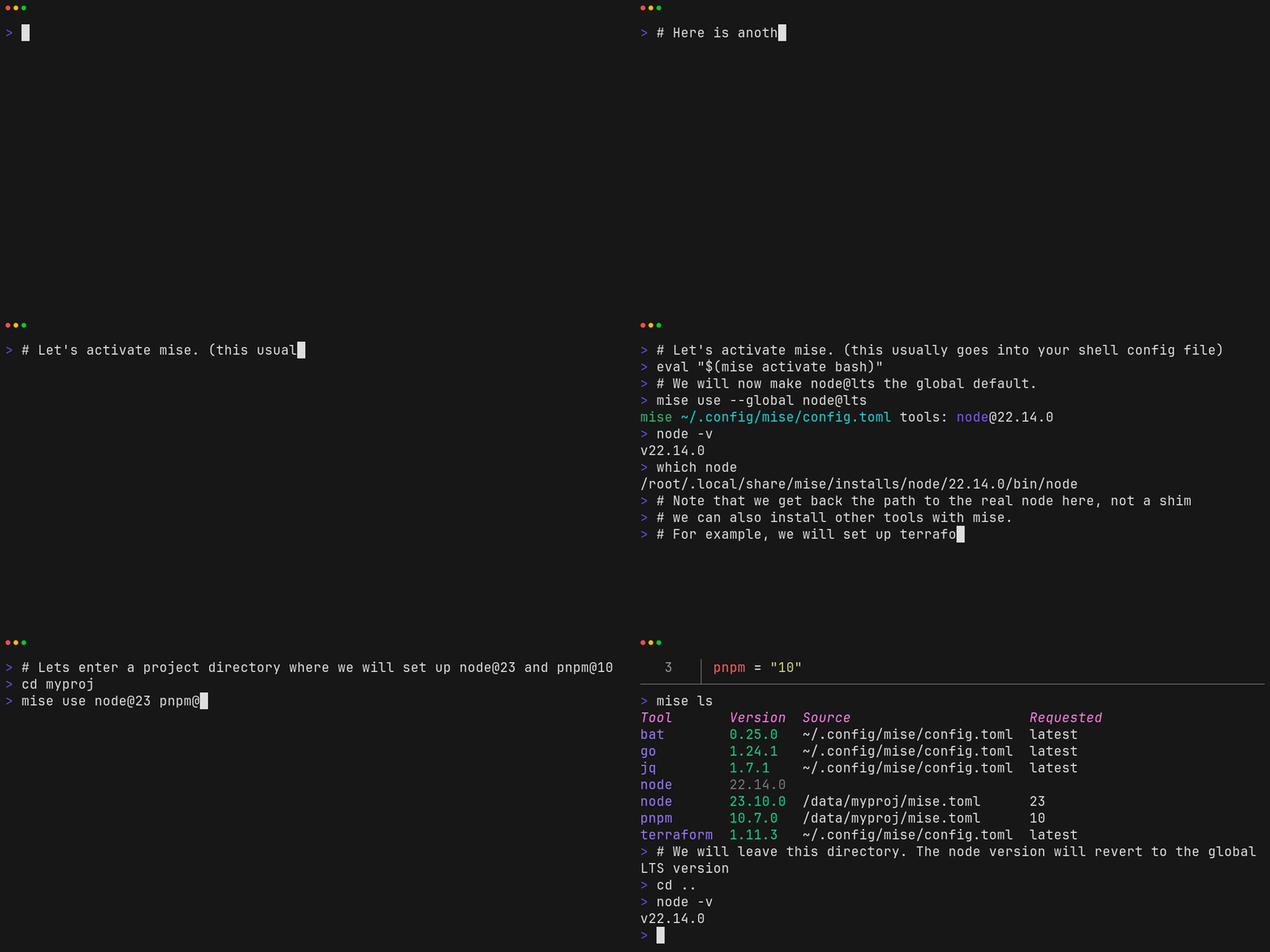
Not necessarily: a loose request like '24' selects a release in that series, so resolved versions can differ between machines. Pin exact versions or commit a lockfile when everyone needs identical results.Which dev tools can it install?Node.js, Python, Go and hundreds more, with different versions for each project. Add one in a project with 'mise use [email protected]', or set personal defaults with 'mise use --global'.
Node.js, Python, Go and hundreds more, with different versions for each project. Add one in a project with 'mise use [email protected]', or set personal defaults with 'mise use --global'.Besides swapping tool versions, what else does it do?It sets project environment variables and loads .env files, runs build and test tasks with the tools and environment they need, and can bootstrap a whole machine — system packages, dotfiles, and services — from the same mise.toml.
It sets project environment variables and loads .env files, runs build and test tasks with the tools and environment they need, and can bootstrap a whole machine — system packages, dotfiles, and services — from the same mise.toml.How does it keep my teammates and CI in sync with me?You commit mise.toml, so everyone — including CI — runs the same commands and gets the same tools and environment. A project with a reviewed mise.toml needs just 'mise install' to be ready to work in.
You commit mise.toml, so everyone — including CI — runs the same commands and gets the same tools and environment. A project with a reviewed mise.toml needs just 'mise install' to be ready to work in.How do I check why a tool isn't picking up my project's version?Run 'mise doctor': it shows which config files load, which versions are selected, and whether shell activation works. If 'mise exec' runs a tool fine but 'node --version' doesn't match, doctor points at the activation problem.
Run 'mise doctor': it shows which config files load, which versions are selected, and whether shell activation works. If 'mise exec' runs a tool fine but 'node --version' doesn't match, doctor points at the activation problem.Which topics is it in?environment-variables, task-runner, version-manager, bootstrap, dotfiles, package-manager, shell, devops, rust, command-line-tool, automation, tool
environment-variables, task-runner, version-manager, bootstrap, dotfiles, package-manager, shell, devops, rust, command-line-tool, automation, tool