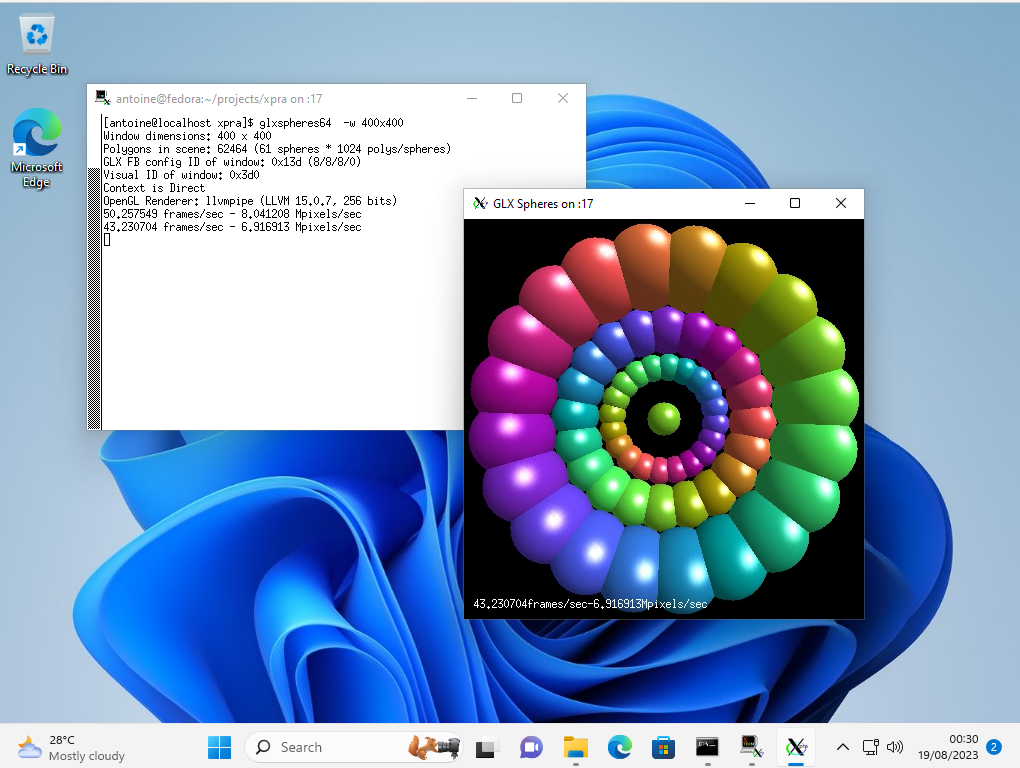
 (the windows may look like native windows, but they are running on a remote Linux server)
What is this?
 Xpra lets you run X11 applications on a remote host and display them on your local machine, keeping them running even after you disconnect - essentially 'screen' for GUI apps. It also supports full remote desktop sessions and screen sharing, with a built-in HTML5 web client.
Xpra lets you run X11 applications on a remote host and display them on your local machine, keeping them running even after you disconnect - essentially 'screen' for GUI apps. It also supports full remote desktop sessions and screen sharing, with a built-in HTML5 web client.Is this a desktop app, a CLI tool, or something else?Xpra is primarily a command-line server/client tool with native GUI clients for Windows, macOS and Linux, plus a server-side HTML5 client so you can connect from just a browser.
Xpra is primarily a command-line server/client tool with native GUI clients for Windows, macOS and Linux, plus a server-side HTML5 client so you can connect from just a browser.How do I get it running?Install the official signed package for your OS (Windows EXE/ZIP/MSI, macOS DMG/PKG for x86_64/arm64, or Linux RPM/DEB), or build from source, then start a session with xpra and connect with a client.
Install the official signed package for your OS (Windows EXE/ZIP/MSI, macOS DMG/PKG for x86_64/arm64, or Linux RPM/DEB), or build from source, then start a session with xpra and connect with a client.Do I need Xpra installed on both machines?Normally yes, Xpra must be installed on both the client and the host; the one exception is connecting through the built-in HTML5 client, where Xpra is only required on the host side.
Normally yes, Xpra must be installed on both the client and the host; the one exception is connecting through the built-in HTML5 client, where Xpra is only required on the host side.Does it need a stable, fast network connection to work well?No specific network speed is required - Xpra is designed to adapt to varying network conditions and can run over many transport types (SSL, SSH, websockets, RFB) on a single TCP port.
No specific network speed is required - Xpra is designed to adapt to varying network conditions and can run over many transport types (SSL, SSH, websockets, RFB) on a single TCP port.Are remote connections encrypted?Yes, Xpra connections can be secured with encryption along with a choice of authentication modules.
Yes, Xpra connections can be secured with encryption along with a choice of authentication modules.What is the difference between seamless mode and shadow mode?Seamless mode forwards individual remote application windows so they look and act like local windows, while shadow mode lets you view and interact with an entire existing remote desktop session instead of just one app.
Seamless mode forwards individual remote application windows so they look and act like local windows, while shadow mode lets you view and interact with an entire existing remote desktop session instead of just one app.What extra desktop features does Xpra forward?It forwards audio input/output, printers, clipboard, system trays, notifications and webcams, and can open remote documents or URLs on the client side.
It forwards audio input/output, printers, clipboard, system trays, notifications and webcams, and can open remote documents or URLs on the client side.Can one connection serve multiple remote sessions?Yes, Xpra's proxy server can relay or act as a front end for multiple server sessions, and sessions can also be auto-announced on a LAN via multicast DNS for easier discovery.
Yes, Xpra's proxy server can relay or act as a front end for multiple server sessions, and sessions can also be auto-announced on a LAN via multicast DNS for easier discovery.Why is it called screen for X?Like the Unix 'screen' terminal multiplexer that keeps terminal sessions alive after you disconnect, Xpra keeps remote X11 GUI applications running and reattachable after you disconnect.
Like the Unix 'screen' terminal multiplexer that keeps terminal sessions alive after you disconnect, Xpra keeps remote X11 GUI applications running and reattachable after you disconnect.What are similar projects?sshdesk, mRemoteNG, labtether, Termix, WindTerm, dsh-remote-web-gateway, tailcat, jumpserver
sshdesk, mRemoteNG, labtether, Termix, WindTerm, dsh-remote-web-gateway, tailcat, jumpserverWhich topics is it in?vnc, x11, remote-desktop, remote-access, gplv2, ssh, websocket, authentication, encryption, proxy, desktop, networking
vnc, x11, remote-desktop, remote-access, gplv2, ssh, websocket, authentication, encryption, proxy, desktop, networking